
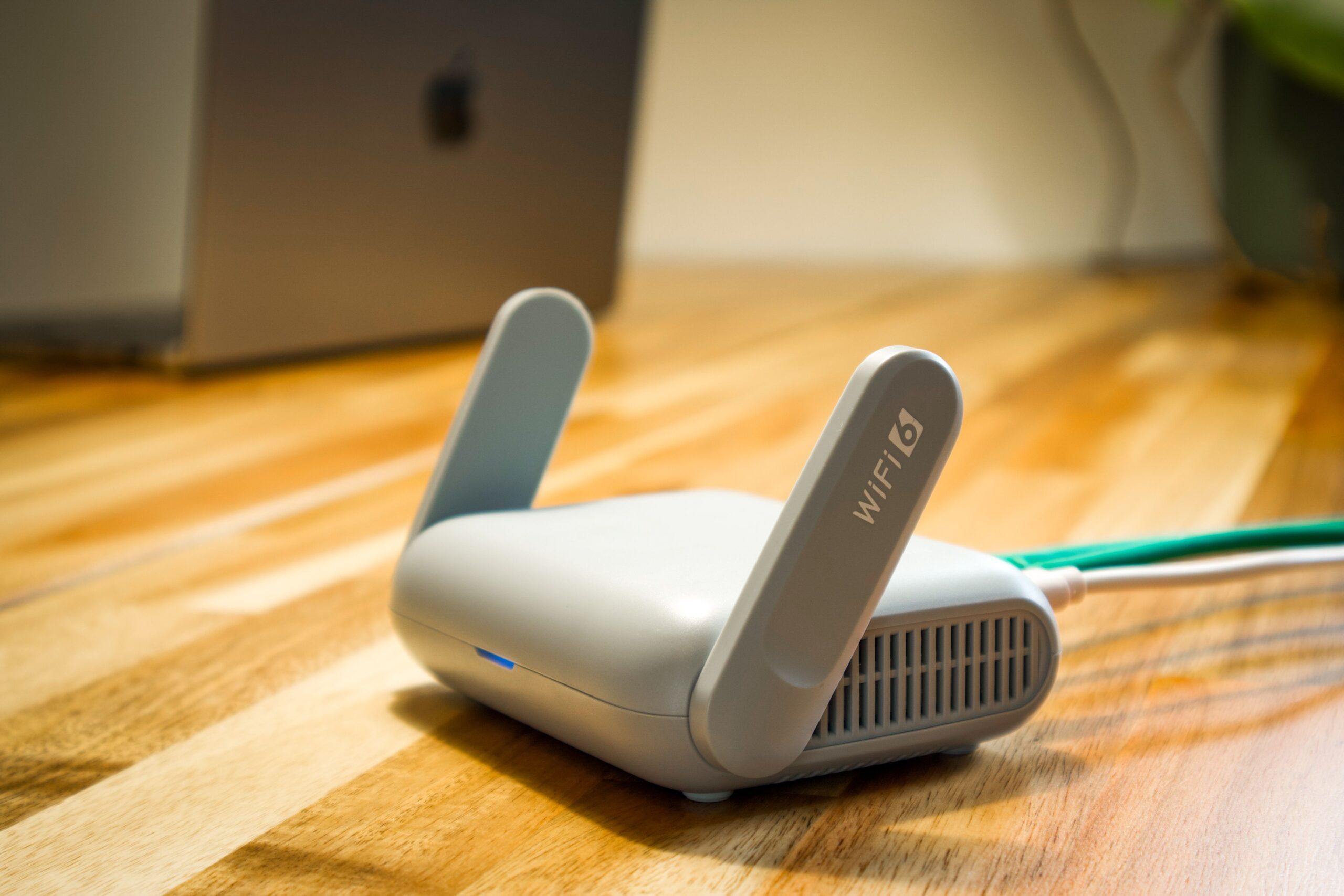
Learn how to create a secure home router setup, optimize Wi-Fi speed, and eliminate frustrating dead zones with simple, proven techniques.
Introduction
Few things are more frustrating than a Wi-Fi connection that drops during a video call, buffers in the middle of a movie, or slows to a crawl when multiple people are online.
The surprising part is that the internet provider isn’t always the problem. In many homes, poor router placement, outdated security settings, and basic setup mistakes are responsible for weak performance.
Over the years, I’ve noticed that many people spend money upgrading their internet plans when a few simple network adjustments would have solved the issue. A well-configured Wi-Fi network can often deliver faster speeds, better coverage, and improved reliability without increasing your monthly bill.
Whether you’re setting up Wi-Fi for the first time or trying to improve an existing network, this guide will walk you through the process step by step.
Table of Contents
- What You’ll Need Before You Start
- Choosing the Right Router
- How to Set Up Your Home Wi-Fi Network
- Secure Home Router Setup Best Practices
- How to Optimize Wi-Fi Speed
- Dual Band vs Tri Band Router: Which Should You Choose?
- How to Fix Home Wi-Fi Dead Zones
- Common Wi-Fi Mistakes to Avoid
- Simple Maintenance Tips
- Frequently Asked Questions
- Final Takeaway
What You’ll Need Before You Start
Before setting up your network, make sure you have:
- An active internet connection from your service provider
- A modem (if your router doesn’t include one)
- A Wi-Fi router
- An Ethernet cable
- A smartphone, tablet, or computer for configuration
Most modern internet providers supply a modem-router combination unit. If that’s what you have, the setup process is usually simpler because there is only one device to manage.
Choosing the Right Router
The quality of your Wi-Fi experience starts with choosing the right hardware.
A router that works perfectly in a small apartment may struggle in a two-story house filled with smart devices.
Consider the Size of Your Home
Small Apartments and Studios
A standard dual-band router is typically sufficient.
Medium-Sized Homes
A Wi-Fi 6 router offers a good balance of speed, range, and future-proofing.
Larger Homes
Consider a mesh Wi-Fi system or a high-performance router designed for wider coverage.
Think About Device Usage
Take a moment to count the devices connected to your network.
Many households now have:
- Smartphones
- Laptops
- Tablets
- Smart TVs
- Security cameras
- Gaming consoles
- Smart speakers
It’s not unusual for a family of four to have 20–30 connected devices. Choosing a router that can comfortably handle that load prevents performance issues later.
How to Set Up Your Home Wi-Fi Network
Once you’ve selected your equipment, the actual setup process is straightforward.
Step 1: Connect Your Modem
Connect the modem to your internet service line and wait for the status lights to stabilize.
If you’re unsure what the lights mean, check the manufacturer’s documentation.
Step 2: Connect the Router
Use an Ethernet cable to connect the modem to the router’s Internet or WAN port.
Power on the router and wait a few minutes for it to initialize.
Step 3: Access the Router Dashboard
Most modern routers provide setup through:
- A mobile app
- A browser-based control panel
Follow the setup wizard provided by the manufacturer.
Step 4: Create Your Network
Choose:
- A recognizable network name (SSID)
- A strong Wi-Fi password
A good password should be long, unique, and difficult to guess.
For example:
Better: R8!mP4@xQ7#WiFi
Avoid: 12345678 or your phone number
Step 5: Test Coverage
Connect a few devices and walk through different areas of your home.
Pay attention to:
- Signal strength
- Speed consistency
- Rooms where performance drops noticeably
Identifying weak spots early helps you address them before they become daily annoyances.
Secure Home Router Setup Best Practices
Security is often overlooked during installation, yet it’s one of the most important parts of the process.
An unsecured network can allow unauthorized users to access your connection or attempt to compromise connected devices.
Change Default Administrator Credentials
Many routers ship with generic login details that are publicly available online.
Changing these credentials should be one of the first things you do.
Enable Modern Encryption
Whenever possible, use:
- WPA3
- WPA2 (if WPA3 isn’t available)
Avoid older protocols such as WEP, which are no longer considered secure.
Keep Firmware Updated
Router manufacturers regularly release updates that:
- Patch security vulnerabilities
- Improve stability
- Enhance performance
A quick firmware check every few months can prevent future problems.
Create a Guest Network
When visitors need internet access, provide a separate guest network.
This simple step prevents guests from accessing devices such as:
- Security cameras
- Network storage drives
- Smart home equipment
How to Optimize Wi-Fi Speed
If your internet plan promises high speeds but your devices feel slow, the issue may be inside your home.
Start with Router Placement
Router placement has a bigger impact than most people realize.
One client I helped had their router hidden inside a TV cabinet because it looked cleaner. Moving it to an open shelf increased download speeds in nearby rooms by more than 50%.
For best results, place the router:
- Near the center of the home
- On a shelf or elevated surface
- Away from large metal objects
Avoid:
- Cabinets
- Basements
- Behind televisions
- Near microwaves
Use the Right Frequency Band
Most modern routers broadcast two Wi-Fi bands.
2.4 GHz
Best for:
- Longer range
- Better wall penetration
Not ideal for:
- Maximum speed
5 GHz
Best for:
- Faster speeds
- Streaming
- Gaming
- Video calls
Not ideal for:
- Very long distances
As a rule of thumb, connect nearby devices to 5 GHz whenever possible.
Reduce Network Congestion
Background activity consumes bandwidth.
Examples include:
- Cloud backups
- Automatic updates
- Multiple simultaneous streams
Managing these activities can noticeably improve network responsiveness.
Dual Band vs Tri Band Router: Which Should You Choose?
If you’re shopping for a new router, you’ve probably encountered this question.
Dual-Band Router
A dual-band router provides:
- One 2.4 GHz band
- One 5 GHz band
Ideal for:
- Apartments
- Small families
- Moderate internet usage
Tri-Band Router
A tri-band router provides:
- One 2.4 GHz band
- Two separate 5 GHz bands
Ideal for:
- Large households
- Heavy streaming
- Online gaming
- Numerous connected devices
Real-Life Example
Imagine a home where:
- Parents work remotely
- Children attend online classes
- Someone streams 4K video
- Several smart cameras operate continuously
In this situation, a tri-band router can distribute traffic more effectively and reduce congestion during busy periods.
For most households, however, a high-quality dual-band router remains an excellent choice.
How to Fix Home Wi-Fi Dead Zones
Dead zones are areas where the signal becomes weak or disappears entirely.
They’re common in homes with thick walls, multiple floors, or awkward layouts.
Reposition the Router First
Before buying additional equipment, experiment with placement.
Even moving the router a few feet can dramatically improve coverage.
Install a Wi-Fi Extender
A Wi-Fi extender rebroadcasts your signal into weaker areas.
This can be an affordable solution for small coverage problems.
Upgrade to a Mesh Wi-Fi System
For larger homes, mesh systems often provide the best experience.
Unlike traditional extenders, mesh devices work together as a single network, allowing you to move throughout the home without manually reconnecting.
Common Wi-Fi Mistakes to Avoid
Many performance issues can be traced back to a few avoidable mistakes.
Watch out for:
- Using default passwords
- Ignoring firmware updates
- Hiding the router inside furniture
- Buying a router that is too weak for your home
- Overloading a single frequency band
- Assuming every problem is caused by the ISP
These issues are surprisingly common and often easy to fix.
Simple Maintenance Tips
Think of your Wi-Fi network like any other piece of technology—it performs better with occasional attention.
Every few months:
- Check for firmware updates
- Review connected devices
- Remove unknown devices
- Run a speed test
- Verify that your router remains in an optimal location
A few minutes of maintenance can prevent hours of troubleshooting later.
Frequently Asked Questions
What is the most secure Wi-Fi encryption method?
WPA3 is currently the most secure option available on consumer routers.
How often should I restart my router?
There is no strict schedule, but restarting can help resolve temporary connectivity issues and clear minor glitches.
Is a mesh Wi-Fi system worth it?
For larger homes or properties with multiple floors, a mesh system often provides significantly better coverage than a single router.
Does router location really affect speed?
Absolutely. Poor placement can weaken signals, create dead zones, and reduce overall performance.
Should I upgrade to Wi-Fi 6?
If you’re buying a new router or have many connected devices, Wi-Fi 6 is generally a smart investment.
Final Takeaway
A fast and reliable home network isn’t just about paying for a higher-speed internet plan. In many cases, the biggest improvements come from proper setup, smarter placement, and better security practices.
Start with a secure home router setup, position your router carefully, and use the appropriate Wi-Fi band for your devices. If you’re struggling with weak coverage, address the root cause before assuming you need a more expensive internet package.
A few thoughtful adjustments today can lead to faster speeds, stronger coverage, fewer interruptions, and a significantly better online experience for everyone in your home.