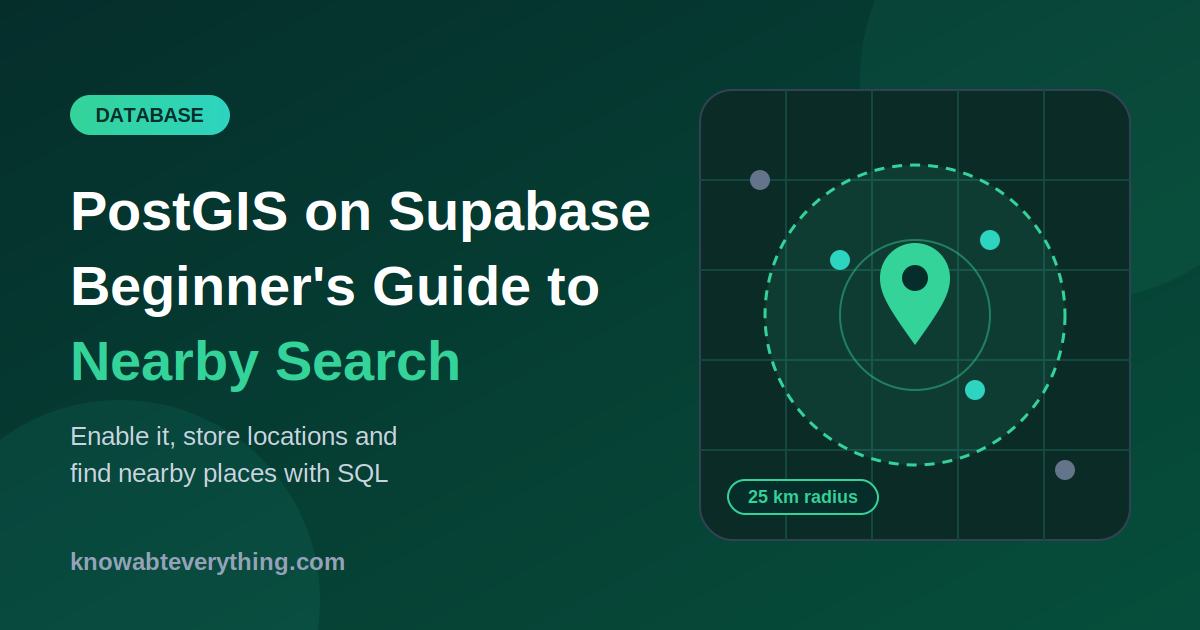
“Show me the coffee shops near me.” “Find users within 10 km.” “Which stores are closest to this address?”
If your app answers questions like these, you need a database that understands maps. Postgres can do this with an extension called PostGIS, and Supabase lets you turn it on in a few clicks.
This guide takes you from an empty Supabase project to a working “find nearby places” query. You don’t need any GIS background. If you can write basic SQL, you can follow along.
What PostGIS is
PostGIS is an extension for Postgres. It adds new data types for locations, such as points and polygons, along with functions that work on them: distance, “is this inside that area,” “what’s closest,” and more.
Without it, you’d store latitude and longitude in two number columns and write the distance math yourself. That gets slow and messy fast. With PostGIS, the database does it for you, and it can use a special index to keep searches quick.
What you need
- A free Supabase account and a project
- Access to the SQL Editor in your Supabase dashboard
- About 15 minutes
Step 1: Enable the PostGIS extension
You have two ways to do this. Pick one.
Option A: the dashboard. Open your project and go to Database, then Extensions. Search for postgis and switch it on.
Option B: SQL. Open the SQL Editor and run:
create extension if not exists postgis with schema extensions;
Supabase keeps extensions in a separate schema called extensions, which keeps your public schema tidy. That’s why the command includes with schema extensions.
To check that it worked, run:
select postgis_version();
If you see a version number, you’re set. If Postgres says it can’t find the function, try select extensions.postgis_version(); instead.
Step 2: Create a table with a location column
Let’s make a simple places table:
create table places (
  id bigint generated always as identity primary key,
  name text not null,
  location geography(Point, 4326) not null
);
The important line is the last one. geography(Point, 4326) means:
- Point: each row stores one spot on the map.
- 4326: the coordinate system. This is the standard GPS system (WGS 84), the one your phone uses.
- geography: distances are calculated on the curved surface of the Earth and returned in meters.
Geography or geometry?
PostGIS has two main types, and beginners often mix them up.
geography | geometry | |
|---|---|---|
| Works on | The round Earth | A flat plane |
| Distance unit | Meters | Whatever the coordinate system uses (often degrees) |
| Best for | “Find things near this GPS point” | Maps, floor plans, advanced analysis |
| Speed | A bit slower | Faster, with more functions |
For a nearby-search feature using GPS coordinates, geography is the simpler and safer choice.
Step 3: Add an index
Without an index, the database checks every row for every search. Add a spatial index so it doesn’t have to:
create index places_location_idx on places using gist (location);
gist is the index type PostGIS uses for spatial data. Skipping this step is one of the most common reasons location queries get slow.
Step 4: Insert some places
Here’s the part that trips up almost everyone, so read this twice:
PostGIS wants longitude first, then latitude. It’s the reverse of how most people say it.
insert into places (name, location) values
  ('Delhi',    st_point(77.2090, 28.6139)::geography),
  ('Noida',    st_point(77.3910, 28.5355)::geography),
  ('Gurugram', st_point(77.0266, 28.4595)::geography),
  ('Mumbai',   st_point(72.8777, 19.0760)::geography);
st_point(longitude, latitude) makes a point, and ::geography turns it into the type our column expects. If you accidentally swap the order, your places end up in the wrong part of the world, and nothing will warn you.
Step 5: Find places near a point
Now the fun part. Let’s find everything within 25 km of central Delhi, nearest first:
select
  name,
  st_distance(location, st_point(77.2090, 28.6139)::geography) / 1000 as distance_km
from places
where st_dwithin(
  location,
  st_point(77.2090, 28.6139)::geography,
  25000
)
order by distance_km;
Here’s what each part does:
st_distancereturns the distance in meters. Dividing by 1000 gives kilometers.st_dwithinkeeps only rows within the given distance. The25000is in meters. It uses your spatial index, so it’s fast.order by distance_kmputs the closest places first.
Mumbai is far outside the radius, so it won’t appear. Change the number and run it again to see the results change.
Step 6: Wrap it in a function
Your app shouldn’t write raw SQL. A cleaner approach is a database function that your app can call. This one takes a latitude, longitude and radius:
create or replace function nearby_places(
  lat double precision,
  lng double precision,
  radius_km double precision default 10
)
returns table (id bigint, name text, distance_km double precision)
language sql
stable
as $$
  select
    p.id,
    p.name,
    st_distance(p.location, st_point(lng, lat)::geography) / 1000 as distance_km
  from places p
  where st_dwithin(p.location, st_point(lng, lat)::geography, radius_km * 1000)
  order by distance_km;
$$;
Now you can call it from JavaScript with the Supabase client:
const { data, error } = await supabase.rpc('nearby_places', {
  lat: 28.6139,
  lng: 77.2090,
  radius_km: 25,
});

if (error) console.error(error);
else console.log(data);
Notice what the function returns: the name, the ID and the distance. It does not return the raw coordinates. If your app is about people rather than shops, this matters. You can show “3.2 km away” without handing everyone each other’s exact location.
A note on security
Supabase tables exposed through its API should have Row Level Security (RLS) turned on:
alter table places enable row level security;
Then add policies that say who can read or write what. If you don’t, anyone with your public API key may be able to query the table directly, including the location column. For anything involving people’s locations, keep the table locked down and let users reach it only through functions like the one above.
Common mistakes
- Swapping longitude and latitude. It’s
st_point(lng, lat). If your points land in the ocean, check this first. - Forgetting the index. Without the
gistindex, searches slow down as your table grows. - Mixing up units. With
geography, distances are in meters. Passing10instead of10000gives you a 10-meter radius. - Using
geometryby accident. Distances come back in degrees, which is almost never what you want for GPS data. - Trying to move the extension later. PostGIS can’t simply be moved between schemas after it’s installed. It’s easiest to enable it in the
extensionsschema from the start.
What to take away
- PostGIS turns Postgres into a location-aware database, and Supabase lets you enable it in a few clicks.
- Use
geography(Point, 4326)for GPS coordinates. Distances are in meters. - Always create a
gistindex on the location column. - Remember: longitude first, latitude second.
- Wrap your search in a function, and return distance rather than raw coordinates.
- Turn on Row Level Security before you put real data in the table.
Related posts: Privacy-Preserving Proximity Discovery with MongoDB Geospatial Queries, and Express API Security: IDOR and Mass Assignment Explained.
Express API Security: IDOR and Mass Assignment Explained · knowabteverything.com
How I Detect Phone Numbers and Payment Details in Chat Messages · knowabteverything.com