
How to Reset MongoDB Atlas Network Access When Connections Suddenly Stop Working A MongoDB Atlas connection can fail for dozens of reasons, but one issue shows up far more often than most developers expect: network access restrictions.
You may spend an hour checking your connection string, resetting passwords, restarting your application, and reviewing your code—only to discover that Atlas is blocking your IP address.
This guide explains how MongoDB Atlas network access works, how to safely reset it, and when using 0.0.0.0/0 (Allow Access From Anywhere) makes sense.
Table of Contents
- Why MongoDB Atlas Connections Fail
- Understanding Network Access in MongoDB Atlas
- What Does 0.0.0.0/0 Actually Mean?
- How to Reset Network Access Settings
- Step-by-Step: Allow Connections From Anywhere
- How to Verify the Fix
- Common Mistakes That Cause Connection Problems
- Security Best Practices
- Real-World Troubleshooting Example
- Quick Troubleshooting Checklist
- Frequently Asked Questions
- Final Takeaway
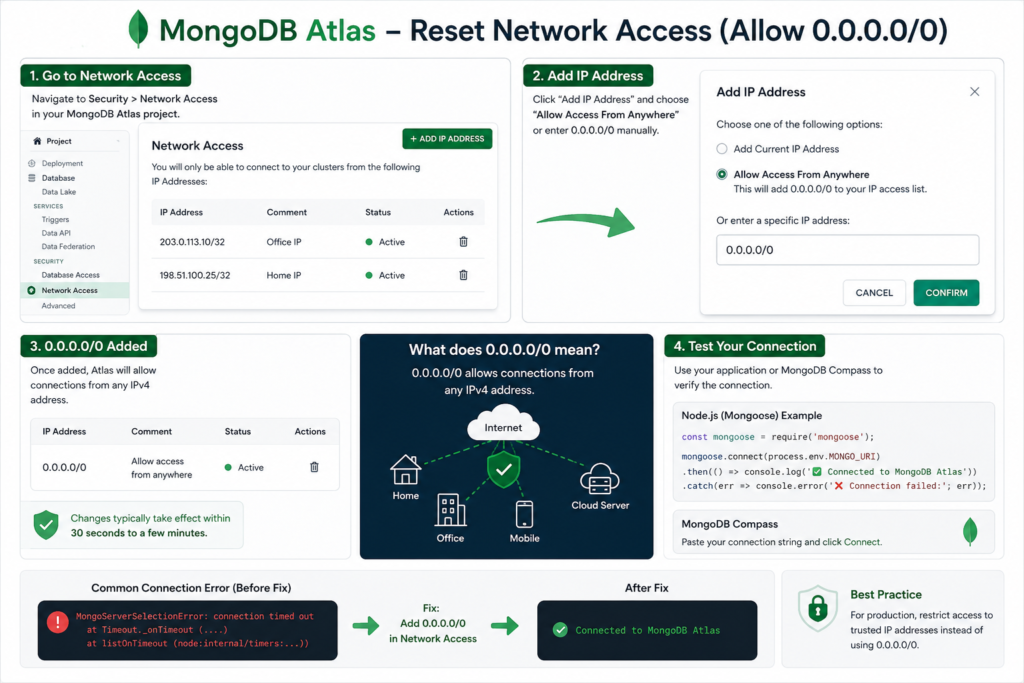
Why MongoDB Atlas Connections Fail
When Atlas rejects a connection, developers often see errors like:
MongoServerSelectionError: connection timed out
MongoNetworkError: failed to connect
Server selection timed out after 30000 ms
At first glance, these errors seem to point toward a coding issue. In reality, they frequently occur because Atlas doesn’t recognize the IP address trying to connect.
A typical troubleshooting process looks something like this:
- Verify the username and password
- Double-check the connection string
- Restart the application
- Reinstall dependencies
- Search through Stack Overflow posts
Only later does the developer discover that Atlas is silently blocking the connection because the IP address isn’t authorized.
That’s why checking network access should be one of the first steps whenever Atlas connectivity suddenly stops working.
Understanding Network Access in MongoDB Atlas
MongoDB Atlas uses multiple layers of security.
The first layer is database authentication, which verifies that the username and password are valid.
The second layer is network access control, which determines whether Atlas will even accept requests from a particular location.
Think of it like entering a secure office building:
- Your username and password are your employee badge.
- Your IP address is the approved visitor list.
Even if you have a valid badge, security may still deny entry if your name isn’t on the list.
This extra layer helps protect databases from unauthorized access attempts across the internet.
What Does 0.0.0.0/0 Actually Mean?
The IP range:
0.0.0.0/0
means:
Allow connections from any IPv4 address.
When Atlas sees this rule, it accepts incoming connections regardless of the public IP address being used.
This is especially useful during development because public IP addresses often change without notice.
For example:
- You work from home today.
- Your internet provider assigns a different IP tomorrow.
- Atlas no longer recognizes your machine.
- Your application suddenly stops connecting.
Adding 0.0.0.0/0 removes that limitation and allows Atlas to accept connections from any network.
When Is Allowing Access From Anywhere Useful?
There are several situations where this setting can save time.
Local Development
If you’re building an application on your laptop, you may connect from different networks throughout the week.
Examples include:
- Home Wi-Fi
- Office internet
- Mobile hotspot
- University network
- Shared coworking space
Whitelisting every possible IP address quickly becomes inconvenient.
Learning and Testing
Students and developers experimenting with MongoDB often use Atlas from multiple devices.
Allowing access from anywhere simplifies setup and reduces troubleshooting time.
Temporary Diagnostics
When you’re unsure whether the issue is network-related, adding 0.0.0.0/0 can help isolate the problem.
If the connection immediately starts working, you’ve confirmed that network access was the root cause.
How to Reset Network Access Settings in MongoDB Atlas
If your current access rules are outdated or cluttered, resetting them is usually straightforward.
Step 1: Sign In to MongoDB Atlas
Open your Atlas dashboard and select the project containing your cluster.
Make sure you’re working in the correct project. Developers managing multiple projects sometimes update settings in the wrong one and wonder why nothing changes.
Step 2: Open Network Access
In the left navigation menu:
Security → Network Access
You’ll see all currently approved IP addresses.
Review the list carefully.
Look for:
- Old IP addresses
- Duplicate entries
- Temporary addresses that are no longer needed
Step 3: Remove Obsolete Entries
Cleaning up unused entries makes future troubleshooting easier.
Delete IP addresses that:
- Belong to old devices
- Were added for temporary testing
- Are no longer trusted
This step isn’t always required, but it helps keep security settings organized.
Step-by-Step: Add 0.0.0.0/0
Once you’re on the Network Access page:
Click “Add IP Address”
Atlas provides two options:
- Add Current IP Address
- Allow Access From Anywhere
For development purposes, choose:
Allow Access From Anywhere
Atlas automatically enters:
0.0.0.0/0
Confirm the Change
Click the confirmation button and wait for Atlas to update its firewall rules.
The process usually takes less than a minute.
Avoid testing immediately after saving. Give Atlas a short period to apply the changes.
How to Verify the Fix
Once the network rule has been added, test connectivity from your application.
Example Using Node.js and Mongoose
const mongoose = require("mongoose");

mongoose.connect(process.env.MONGO_URI)
.then(() => {
  console.log("Database connected");
})
.catch((error) => {
  console.error(error);
});
If the application connects successfully, the issue was likely related to network access restrictions.
Test With MongoDB Compass
MongoDB Compass is another quick way to verify connectivity.
Simply:
- Copy the Atlas connection string.
- Paste it into Compass.
- Click Connect.
If Compass connects successfully, your cluster is reachable.
Common Mistakes That Cause Connection Problems
Even experienced developers occasionally overlook simple issues.
Updating the Wrong Atlas Project
Organizations often have separate development, staging, and production environments.
Make sure you’re modifying the network settings for the cluster you’re actually using.
Forgetting to Create a Database User
Network access alone isn’t enough.
Atlas also requires a valid database user with appropriate permissions.
Check:
Security → Database Access
to confirm that the account exists.
Using an Outdated Connection String
Developers sometimes rename clusters or create new ones but continue using an older URI.
Always copy the latest connection string directly from Atlas.
Testing Too Quickly
Atlas needs a short time to update network rules.
If you test immediately after saving changes, you may see the same error even though the fix is already in progress.
Assuming the Password Is the Problem
Connection errors don’t always indicate authentication failures.
Before resetting passwords, verify:
- Network access settings
- Cluster health
- Current IP configuration
Security Best Practices
Allowing access from anywhere is convenient, but convenience and security don’t always align.
Good Uses for 0.0.0.0/0
- Personal projects
- Development environments
- Training exercises
- Quick troubleshooting sessions
- Temporary testing
Situations Where You Should Be More Restrictive
- Production applications
- Customer-facing platforms
- Business databases
- Applications storing sensitive information
For long-term deployments, consider allowing only known IP addresses whenever possible.
This significantly reduces unnecessary exposure.
A Practical Approach
Many development teams follow this workflow:
- Enable 0.0.0.0/0 during development.
- Confirm the application works correctly.
- Replace broad access rules with specific trusted IP addresses before deployment.
This balances convenience with security.
A Real-World Example
A developer was building a REST API using Node.js and MongoDB Atlas.
Everything worked perfectly on Friday.
On Monday morning, every request returned:
Server selection timed out
The immediate assumption was that a recent code change had broken the application.
After nearly an hour of debugging, the actual cause turned out to be much simpler.
The internet provider had assigned a new public IP address over the weekend.
The solution took less than two minutes:
- Open Atlas.
- Navigate to Network Access.
- Add 0.0.0.0/0.
- Wait for the update to complete.
The API connected successfully again.
It’s a simple issue, but one that catches developers surprisingly often.
Quick Troubleshooting Checklist
Before making major changes to your application, run through this list:
Cluster is running
Database user exists
Username and password are correct
Connection string matches the current cluster
Network access rules include your IP
Atlas changes have fully propagated
Internet connection is working
Firewall or corporate network isn’t blocking outbound connections
Checking these items can save a significant amount of debugging time.
Frequently Asked Questions
How long does MongoDB Atlas take to update network access rules?
Most changes are applied within 30–60 seconds, although occasional delays of several minutes can occur.
Why did my connection stop working even though nothing changed in my code?
Your public IP address may have changed. This is common with residential internet connections and mobile networks.
Is 0.0.0.0/0 safe?
It’s generally acceptable for development and temporary testing, but it’s not the most secure option for production environments.
Can I use a mobile hotspot with MongoDB Atlas?
Yes. Allowing access from anywhere typically enables connections from mobile networks as well.
What should I do if adding 0.0.0.0/0 doesn’t solve the issue?
Check:
- Database credentials
- Connection string accuracy
- Cluster status
- Firewall restrictions
- Atlas service status
The problem may be unrelated to network access.
Conclusion
When MongoDB Atlas suddenly stops accepting connections, don’t assume the problem is in your code.
Network access restrictions are one of the most common causes of Atlas connectivity issues, especially for developers working from home, switching networks, or using dynamic IP addresses.
Adding 0.0.0.0/0 is often the quickest way to determine whether IP restrictions are causing the problem. If the connection starts working immediately, you’ve found the source of the issue.
The next time Atlas throws a timeout error, check the Network Access page before diving into hours of debugging. It may save you far more time than any code fix.
Read about How to Import Product Data into Supabase Using a CSV File (Without Writing SQL) – knowabteverything
Welcome to the MongoDB Docs – MongoDB Documentation – MongoDB Docs

About Amish
Hi, I’m Amish, and developer.
I write practical React Native, Node.js, MongoDB, and Supabase tutorials based on real projects and testing.
[…] Read about How to Reset MongoDB Atlas Network Access When Connections Suddenly Stop Working – knowabtever… […]