
The Ultimate MongoDB Atlas Setup Guide for Beginners (2026) Learn how to create your first MongoDB Atlas cluster, secure it properly, and connect it to a real application without getting stuck on common beginner mistakes.
Introduction
The first time I used MongoDB Atlas, I expected the setup to take five minutes. Instead, I spent nearly an hour troubleshooting a connection error that turned out to be a missing network access rule. If you’re new to MongoDB, you’re not alone. Most beginners don’t struggle with writing queries—they struggle with the initial setup. Between clusters, connection strings, database users, IP access lists, and environment variables, it’s easy to miss a small step that prevents everything from working.
The good news is that once Atlas is configured correctly, it becomes one of the easiest cloud databases to manage. In this guide, you’ll learn exactly how to set up MongoDB Atlas from scratch, create a free cluster, secure your database, connect it to a Node.js application, and avoid the mistakes that commonly frustrate new developers.
Whether you’re building a personal project, learning full-stack development, or preparing for professional work, this tutorial will help you get your database online quickly and securely.
Table of Contents
- What Is MongoDB Atlas?
- Why Developers Use MongoDB Atlas
- Step 1: Create a MongoDB Atlas Account
- Step 2: Create a Free MongoDB Atlas Cluster
- Step 3: Configure Database Access
- Step 4: Configure Network Access
- Step 5: Obtain Your Connection String
- Step 6: Store Credentials Securely Using a .env File
- Step 7: Connect MongoDB Atlas to Node.js
- Using MongoDB Compass with Atlas
- Common Setup Mistakes and Fixes
- Security Best Practices
- Frequently Asked Questions
- Final Thoughts
What Is MongoDB Atlas?
MongoDB Atlas is the official cloud-hosted version of MongoDB. Instead of installing MongoDB on your own computer or managing a server, Atlas handles the infrastructure for you. MongoDB manages updates, monitoring, availability, and much of the operational work behind the scenes.
This allows developers to focus on building applications rather than maintaining database servers.
With MongoDB Atlas, you can:
- Create databases in minutes
- Access data from anywhere
- Scale projects as they grow
- Monitor performance through a web dashboard
- Use built-in security features
- Connect applications running locally or in the cloud
For most modern web applications, Atlas has become the default way to use MongoDB.
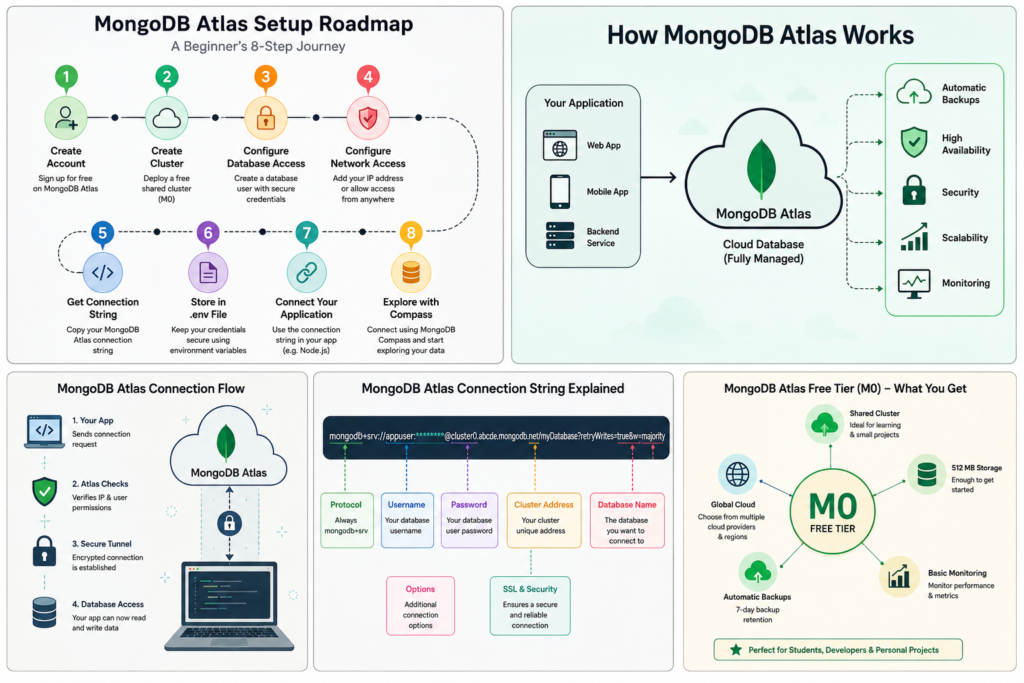
Why Developers Choose MongoDB Atlas
Many beginners wonder whether they should install MongoDB locally or start directly with Atlas. Both approaches work, but Atlas offers several advantages.
Benefits of MongoDB Atlas
- Free starter cluster available
- No server maintenance required
- Easy cloud deployment
- Automatic backups on higher plans
- Built-in security controls
- Global infrastructure through major cloud providers
A Practical Example
Imagine you’re building a student management portal for a college project. If the database exists only on your laptop, the application stops working whenever your computer is turned off.
With MongoDB Atlas, the database remains online continuously. You can access it from your laptop, a hosted website, a mobile application, or a teammate’s development environment.
This flexibility is one reason cloud databases have become standard in modern development.
Step 1: Create a MongoDB Atlas Account
The first step in this MongoDB Atlas setup guide is creating an account. Visit the MongoDB Atlas website and select Get Started Free.
You can register using:
- Email address
- Google account
- GitHub account
After verifying your account, Atlas will guide you through creating your first deployment.
Quick Tip
Use an email address that you’ll keep long-term. Many developers create project accounts using temporary emails and later lose access to important databases.
Step 2: Create a Free MongoDB Atlas Cluster
Your cluster is where databases and collections are stored. Atlas offers a free tier that is perfect for learning, portfolio projects, testing environments, and small applications.
How to Create a Free Cluster
- Click Create Deployment
- Select the M0 Free Tier
- Choose a cloud provider:
- AWS
- Google Cloud
- Microsoft Azure
- Select the nearest available region
- Click Create Deployment
The deployment process typically takes a few minutes.
Which Region Should You Choose?
Choose a location close to where your application will be used.
Examples:
- India → Mumbai
- United States → Virginia or Ohio
- Europe → Frankfurt or London
Keeping the database geographically close to users can improve response times.
Step 3: Configure Database Access
Before applications can connect to Atlas, you need a database user. Think of this user as a dedicated login specifically for your database.
Create a Database User
During setup:
- Enter a username
- Generate a strong password
- Save the credentials securely
Example:
Username: appuser
Password: StrongPassword123!
Why This Step Matters
One of the most common support issues occurs when developers forget their database password shortly after setup. Consider storing credentials in a password manager rather than a text file on your desktop.
Step 4: Configure Network Access
This is the step that causes the most confusion for beginners. MongoDB Atlas uses an IP allowlist to control which devices can connect to your database. If your IP address isn’t allowed, Atlas blocks the connection.
Option 1: Allow Your Current IP Address
Atlas usually detects your IP automatically.
Click:
Add Current IP Address
This is the safest and most common option during development.
Option 2: Allow Connections from Any IP
You can also add:
0.0.0.0/0
This permits connections from any location. While convenient for testing, it’s generally better to restrict access whenever possible, especially for production applications.
Common Connection Error
If you encounter an error such as:
MongoServerSelectionError
The first thing to check is your network access configuration. In my experience, this single setting accounts for a large percentage of Atlas connection issues.
Step 5: Obtain Your MongoDB Atlas Connection String
Once your cluster is ready, Atlas provides a connection string that applications use to communicate with the database.
How to Connect to MongoDB Atlas
- Open your cluster dashboard
- Click Connect
- Select Drivers
- Choose your programming language
Atlas will generate a connection string similar to:
mongodb+srv://username:password@cluster0.xxxxx.mongodb.net/
Replace the placeholders with your actual credentials.
Example:
mongodb+srv://appuser:MyPassword123@cluster0.mongodb.net/mydatabase
What Is a Connection String?
A connection string contains:
- Database location
- Username
- Password
- Connection settings
Think of it as the address and login details your application uses to find and access the database.
Step 6: Store Credentials Securely Using a .env File
One habit that separates beginners from experienced developers is proper credential management. Never place database passwords directly inside your source code. Instead, use environment variables.
Create a .env File
MONGODB_URI=mongodb+srv://appuser:password@cluster0.mongodb.net/mydatabase
Why Use Environment Variables?
Benefits include:
- Improved security
- Easier deployment
- Cleaner source code
- Better collaboration with teams
Install dotenv
npm install dotenv
Load environment variables:
require("dotenv").config();
Access them anywhere in your application:
process.env.MONGODB_URI
If you later change your database credentials, you’ll only need to update the .env file instead of editing multiple source files.
Step 7: Connect MongoDB Atlas to Node.js
Now it’s time to connect your application.
Install the MongoDB Driver
npm install mongodb
Example Connection Code
const { MongoClient } = require("mongodb");
require("dotenv").config();

const client = new MongoClient(process.env.MONGODB_URI);

async function connectDB() {
  try {
    await client.connect();
    console.log("Connected to MongoDB Atlas");
  } catch (error) {
    console.error("Connection failed:", error);
  }
}

connectDB();
Verify the Connection
Run your application.
If everything is configured correctly, you’ll see:
Connected to MongoDB Atlas
At this point, your application is successfully communicating with your cloud database.
Using MongoDB Compass with Atlas
Many developers prefer visual tools when exploring databases.
MongoDB Compass is the official graphical interface for MongoDB.
How to Connect Compass to Atlas
- Install MongoDB Compass
- Launch the application
- Paste your Atlas connection string
- Click Connect
You’ll immediately be able to:
- View collections
- Browse documents
- Run queries
- Insert test data
- Analyze database structure
For beginners, Compass is often easier than learning shell commands immediately.
Common Setup Mistakes and How to Fix Them
Forgetting Network Access Rules
Problem: Connection timeout or server selection errors.
Solution: Verify that your IP address has been added to Atlas.
Incorrect Database Password
Problem: Authentication failed.
Solution: Double-check credentials and reset the password if necessary.
Committing Credentials to GitHub
Problem: Sensitive information becomes public.
Solution: Use environment variables and add .env to your .gitignore file.
Editing the Connection String Incorrectly
Problem: Atlas cannot locate or authenticate your connection.
Solution: Copy the connection string directly from the Atlas dashboard and modify only the required placeholders.
Choosing the Wrong Database Name
Problem: Data appears to be missing.
Solution: Confirm that your application is connecting to the intended database.
Security Best Practices
Even small projects deserve good security habits.
Follow these recommendations from the beginning:
- Use strong, unique passwords
- Enable multi-factor authentication
- Store credentials in environment variables
- Limit network access whenever possible
- Rotate credentials periodically
- Avoid sharing connection strings publicly
- Review user permissions regularly
These habits may seem minor now, but they become critical as applications grow.
Frequently Asked Questions
Is MongoDB Atlas free?
Yes. Atlas offers a free M0 cluster suitable for learning, development, and small projects.
Can I use MongoDB Atlas in production?
Yes. Many production applications use Atlas. Paid plans provide additional resources, backups, monitoring, and scalability.
Do I need MongoDB installed on my computer to use Atlas?
No. Atlas is cloud-hosted, so local MongoDB installation is not required.
Why am I getting a MongoServerSelectionError?
The most common causes are:
- Missing network access rules
- Incorrect connection string
- Internet connectivity issues
- Invalid credentials
Is MongoDB Compass required?
No. Compass is optional but extremely useful for visualizing and managing your database.
Can I connect Atlas to frameworks like Express, Next.js, React, or React Native?
Yes. MongoDB Atlas works with virtually any framework or platform that supports MongoDB connections.
Final Thoughts
MongoDB Atlas removes much of the complexity traditionally associated with database management. Instead of configuring servers and maintaining infrastructure, you can focus on building features and learning development skills.
If you’re just getting started, remember the three areas where most setup problems occur:
- Database credentials
- Network access configuration
- Connection string errors
Get those right, and the rest of the setup is usually straightforward.
Once your first Atlas cluster is running, you’ll have a cloud-hosted database that can support everything from personal projects and college assignments to full-scale web applications.
The best way to learn from here is simple: create a small project, connect it to Atlas, insert some data, and start experimenting. That’s where the real understanding begins.
Read about How to Reset MongoDB Atlas Network Access When Connections Suddenly Stop Working – knowabteverything
How to Fix MongoDB Connection Timeout in Node.js (MongoDB Atlas & Mongoose) – knowabteverything
Official website for mongo db MongoDB: The World’s Leading Modern Data Platform | MongoDB

About Amish
Hi, I’m Amish, and developer.
I write practical React Native, Node.js, MongoDB, and Supabase tutorials based on real projects and testing.
[…] Read about The Ultimate MongoDB Atlas Setup Guide for Beginners (2026) – knowabteverything […]