
Why Is Supabase Email Verification Not Working? 4 Proven Fixes That Actually Work Few things are more frustrating than building a signup flow, testing it, and realizing that verification emails never arrive.
You create a user account, check the inbox, refresh a few times, and nothing happens. Or worse, the email arrives, but clicking the verification link doesn’t verify the account.
If you’re dealing with Supabase email verification not working, you’re not alone. It’s one of the most common authentication issues developers encounter when moving from local development to production.
This guide walks through the four most common causes of Supabase email verification failures and shows you exactly how to resolve them.
Table of Contents
- Why Supabase Email Verification Fails
- Fix #1: Check Your Email Authentication Settings
- Fix #2: Verify Site URL and Redirect URLs
- Fix #3: Review SMTP Configuration
- Fix #4: Improve Email Deliverability
- A Quick Testing Checklist
- Common Mistakes to Avoid
- Fixing Image Picker Permission Denied on Android 13 and 14
- Redirect Users to Settings When Permission is Permanently Blocked
- FAQ
- Final Thoughts
Why Does Supabase Email Verification Fail?
Before jumping into fixes, it helps to understand how the verification process works.
When a user signs up:
- Supabase creates the user account.
- verification email is generated.
- The email is sent through Supabase or your SMTP provider.
- The user clicks the verification link.
- Supabase validates the token.
- The account becomes verified.
If any step in that chain breaks, verification won’t complete successfully.
Typical symptoms include:
- Verification emails never arrive
- Emails arrive several minutes late
- Clicking the verification link does nothing
- Users redirected to the wrong page
- Accounts remain unverified after clicking the email
The challenge is that the signup request often succeeds, making it look like everything is working when it isn’t.
Fix #1: Check Your Email Authentication Settings
The first place to investigate is your Supabase authentication configuration.
Open your Supabase dashboard and navigate to:
Authentication → Providers → Email
Make sure:
- Email authentication is enabled
- Email confirmation is turned on
- There are no recent changes that disabled verification
It sounds obvious, but this setting is frequently overlooked when multiple developers are working on the same project.
Review Your Email Templates
If you’ve customized Supabase email templates, inspect them carefully.
A common mistake is accidentally removing the confirmation URL placeholder while editing the template design.
For example, removing the confirmation link variable may cause emails to send successfully while preventing users from verifying their accounts.
I’ve seen teams spend hours troubleshooting SMTP settings only to discover that the template itself was missing the verification link.
Check Recent Changes
If email verification suddenly stopped working after being reliable for weeks, review:
- Recent authentication updates
- Template modifications
- Environment variable changes
- Deployment updates
In many cases, the problem started immediately after a configuration change.
Fix #2: Verify Site URL and Redirect URLs
Incorrect redirect configuration is one of the biggest reasons developers experience issues with email verification.
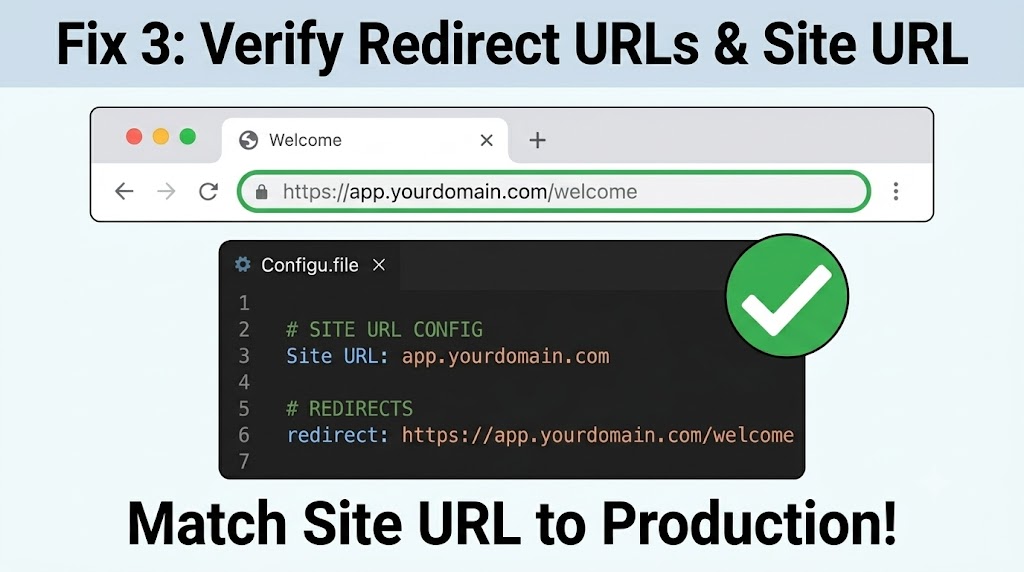
Check Your Site URL
Navigate to:
Authentication → URL Configuration
Your Site URL should match your production application.
For example:
https://yourapp.com
Many developers accidentally leave the development URL in place after deployment.
A production application should not be pointing users to localhost.
Verify Redirect URLs
Supabase only allows redirects to approved destinations.
Any callback URL used by your authentication flow must be added to the allowed redirect list.
Examples include:
https://yourapp.com/auth/callback
https://www.yourapp.com/auth/callback
Missing even one variation can cause verification failures.
A Real-World Example
A SaaS startup launched successfully but noticed users complaining about broken verification emails.
The emails were being delivered correctly.
The issue? The verification link redirected users to:
http://localhost:3000
The authentication system worked perfectly during development but failed for every real customer.
A quick update to the Site URL solved the problem immediately.
What to Check
Before moving on, confirm:
- Production domain is configured
- HTTPS is enabled
- Callback routes exist
- Redirect URLs are whitelisted
- Old development URLs have been removed
Fix #3: Review SMTP Configuration
If your redirect settings are correct, the next area to investigate is email delivery.
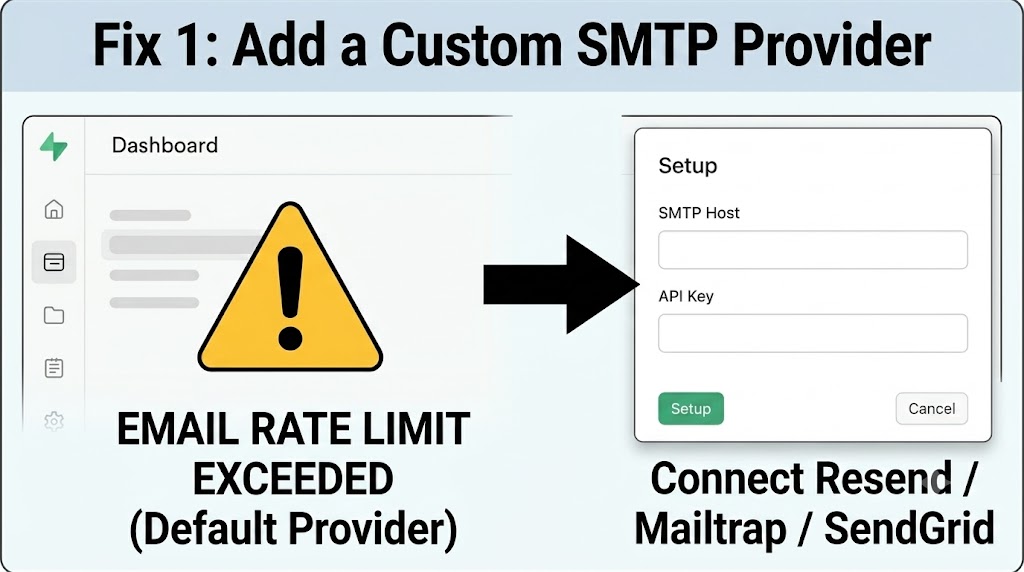
Many production applications use a custom SMTP provider instead of the default Supabase email service.
Popular choices include:
- SendGrid
- Amazon SES
- Postmark
- Mailgun
- Brevo
Verify SMTP Credentials
Check every SMTP field carefully:
- Host
- Port
- Username
- Password
- Sender address
Even a small typo can prevent emails from being sent.
Inspect Email Logs
One of the fastest ways to diagnose delivery issues is by reviewing SMTP logs.
Most providers show whether emails were:
- Delivered
- Deferred
- Rejected
- Bounced
- Marked as spam
Instead of guessing, use the logs to identify exactly where the process fails.
Test With Different Email Providers
A mistake many developers make is testing exclusively with Gmail.
Verification emails may work perfectly with Gmail while failing with:
- Outlook
- Yahoo
- Corporate email servers
- University email systems
Always test across multiple providers before going live.
Fix #4: Improve Email Deliverability
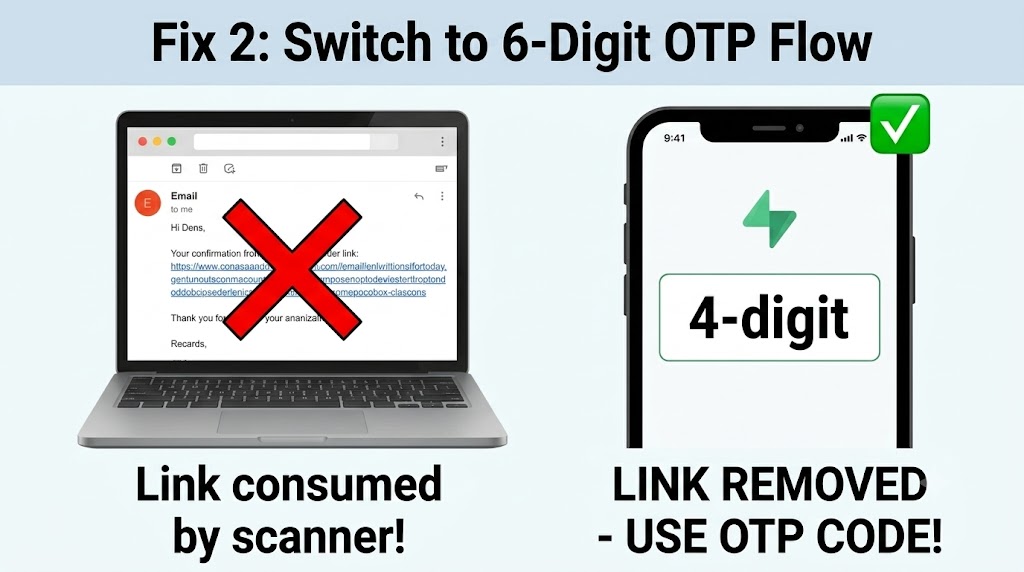
Sometimes Supabase is working correctly and the email is actually being sent.
The real problem is that the message never reaches the inbox.
Check Spam and Promotions Folders
Before making major changes, search for:
- Supabase
- Verify
- Confirmation
- Your application name
inside spam and promotions folders.
This simple step solves more support tickets than many developers expect.
Configure SPF, DKIM, and DMARC
If you’re using a custom domain, proper email authentication is essential.
SPF
Helps receiving mail servers verify that your SMTP provider is allowed to send emails on behalf of your domain.
DKIM
Adds a cryptographic signature that proves the message hasn’t been altered.
DMARC
Provides rules for handling suspicious messages and improves trust with mailbox providers.
Together, these records can significantly improve inbox placement.
Why This Matters
A newly launched application often uses a brand-new domain.
Email providers treat new domains cautiously.
Without proper authentication, verification emails are much more likely to end up in spam folders.
A Quick Testing Checklist
Whenever you modify authentication settings, run through this process:
Step 1
Create a brand-new test account.
Step 2
Check whether the verification email arrives.
Step 3
Inspect spam and promotions folders.
Step 4
Click the verification link.
Step 5
Confirm the redirect reaches the correct page.
Step 6
Open the Supabase dashboard and verify the user status.
Navigate to:
Authentication → Users
If the account has a timestamp in the email confirmation field, verification succeeded.
Testing with fresh accounts prevents cached sessions from hiding problems.
Common Mistakes Developers Make
After troubleshooting dozens of authentication issues, these are the mistakes that appear most often.
Leaving Localhost URLs in Production
The application works during development but fails for real users.
Forgetting Sender Verification
Many SMTP providers require domain or sender verification before emails can be delivered.
Breaking Email Templates
Custom branding is great, but removing important variables can break verification links.
Ignoring Deliverability
Successful email sending does not guarantee inbox delivery.
Testing With Only One Email Address
A signup flow that works with Gmail may fail elsewhere.
Fixing Image Picker Permission Denied on Android 13 and 14
While troubleshooting authentication, many mobile developers encounter a completely different issue: image upload permissions.
Android 13 and Android 14 introduced changes to media access permissions that can cause image pickers to fail unexpectedly.
Typical errors include:
Permission Denied
or
Unable to Access Photos
What’s Changed?
Older Android applications commonly used:
READ_EXTERNAL_STORAGE
Android 13 introduced more granular media permissions.
For image access, you should now use:
READ_MEDIA_IMAGES
Why Developers Get Stuck
The app may work perfectly on Android 11 or Android 12 but fail on Android 13 and Android 14 devices.
This creates confusing bug reports because only some users experience the issue.
Best Practice
Always test permission-related functionality on:
- Android 12
- Android 13
- Android 14
before releasing updates.
How to Redirect Users to Settings When Permission is Permanently Blocked
A good user experience doesn’t end when permissions are denied.
Sometimes users tap “Don’t Ask Again” or permanently block a permission request.
At that point, repeatedly showing permission prompts won’t help.
Detect Permanent Denial
Most modern mobile frameworks allow you to determine whether a permission has been permanently denied.
When that happens, switch from requesting permission to guiding the user.
Explain Why the Permission Is Needed
Keep the message simple.
Tell users:
- What permission is required
- Why it’s needed
- Which feature depends on it
Avoid technical jargon whenever possible.
Provide a Direct Settings Shortcut
The best experience is usually:
- User denies permission permanently.
- App displays a helpful explanation.
- User taps Open Settings.
- App launches device settings.
- User enables permission.
- Feature starts working immediately.
This approach reduces frustration and support requests while giving users full control over their privacy settings.
Frequently Asked Questions
Why am I not receiving Supabase verification emails?
The most common causes are SMTP configuration issues, spam filtering, domain authentication problems, or disabled email confirmation settings.
Why does the verification link redirect to the wrong page?
This usually happens when the Site URL or Redirect URL configuration doesn’t match your production environment.
Can verification emails go to spam?
Yes. This is especially common with new domains that lack SPF, DKIM, or DMARC records.
How can I confirm email verification is working?
Create a test account, click the verification email, and check the user’s status in the Supabase dashboard under Authentication → Users.
Should I use a custom SMTP provider?
For production applications, a dedicated SMTP provider typically offers better deliverability, monitoring, branding, and reliability.
Final Thoughts
When Supabase email verification not working becomes an issue, the root cause is usually easier to find than it first appears.
Start with the basics:
- Verify authentication settings
- Check Site URL and redirect configuration
- Review SMTP credentials
- Improve email deliverability
Most verification failures can be traced back to one of these areas.
The key is to troubleshoot methodically rather than changing multiple settings at once. By testing each part of the verification flow individually, you’ll identify the problem faster and avoid introducing new issues along the way.
A reliable email verification system is critical for user onboarding, account security, and trust. Spending a little extra time validating your authentication setup now can save countless support requests later.
Read about The Ultimate Supabase Mobile Development Guide (Flutter, React Native & Swift) – knowabteverything
How to Import Product Data into Supabase Using a CSV File (Without Writing SQL) – knowabteverything
How to Import Product Data into Supabase Using a CSV File (Without Writing SQL) – knowabteverything
How to Fix Supabase AuthApiError: “Database Error Finding User” During Signup – knowabteverything

About Amish
Hi, I’m Amish, and developer.
I write practical React Native, Node.js, MongoDB, and Supabase tutorials based on real projects and testing.
[…] Read about Why Is Supabase Email Verification Not Working? 4 Proven Fixes That Actually Work – knowabteve… […]
[…] Why Is Supabase Email Verification Not Working? 4 Proven Fixes That Actually Work – knowabteve… […]
[…] Read about Why Is Supabase Email Verification Not Working? 4 Proven Fixes That Actually Work – knowabteve… […]
[…] Why Is Supabase Email Verification Not Working? 4 Proven Fixes That Actually Work – knowabteve… […]
[…] Why Is Supabase Email Verification Not Working? 4 Proven Fixes That Actually Work – knowabteve… […]