

Struggling with a MongoDB connection timeout? Here’s how to find the real cause and fix it fast.
Few things are more frustrating than seeing your Node.js application fail to connect to MongoDB after you’ve spent hours building features.
Your code looks correct.
Your database is running.
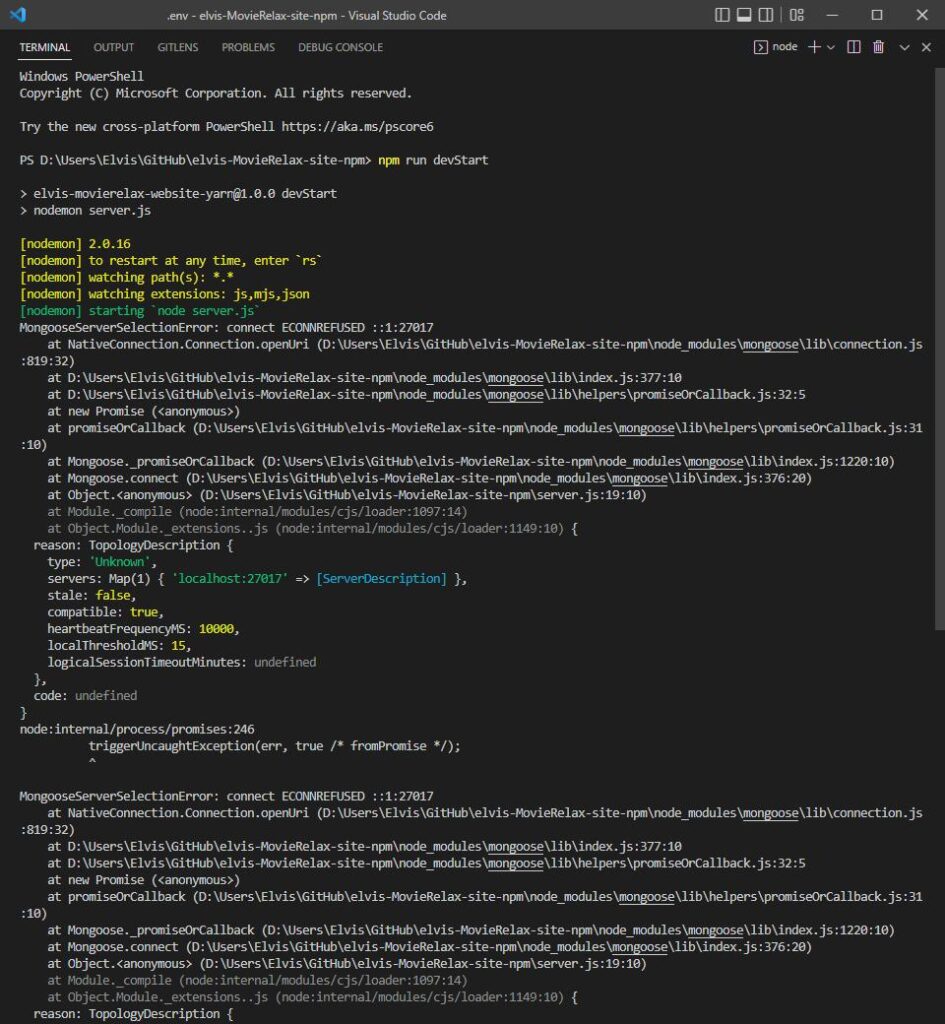
Yet Mongoose keeps throwing errors like:
MongooseServerSelectionError: connection timed out
or
MongoNetworkTimeoutError
I’ve seen this happen in personal projects, client applications, and production deployments. The interesting part is that the problem is rarely MongoDB itself. Most connection timeout issues come from configuration mistakes, network restrictions, or authentication problems.
This guide walks through the exact troubleshooting process I use when a Node.js MongoDB Atlas connection fails. By the end, you’ll know how to identify the cause and restore the connection quickly.
Table of Contents
- What Does a MongoDB Connection Timeout Mean?
- The Most Common Causes
- Verify Your MongoDB Atlas Connection String
- Check Network Access Settings
- Fix MongoDB Whitelist Problems
- Verify Database User Credentials
- How to Connect Mongoose to MongoDB Atlas from a Local Environment
- A Practical Debugging Checklist
- Common Mistakes That Waste Hours
- Best Practices for Reliable Connections
- Frequently Asked Questions
- Final Thoughts
What Does a MongoDB Connection Timeout Mean?
A timeout occurs when your application attempts to communicate with MongoDB but doesn’t receive a response within the allowed period.
Think of it like calling someone whose phone is switched off. The call keeps ringing until it eventually gives up.
When this happens, Mongoose often displays errors such as:
MongooseServerSelectionError
or
MongoNetworkTimeoutError
These messages don’t always reveal the exact cause, which is why many developers spend time debugging the wrong thing.
The goal is to determine why your application can’t reach MongoDB.
The Most Common Causes of MongoDB Timeout Errors
In real-world projects, timeout issues usually fall into one of these categories:
- Incorrect MongoDB Atlas connection string
- IP address not allowed in Atlas Network Access
- Invalid username or password
- DNS resolution problems
- Firewall or network restrictions
- Atlas cluster paused or unavailable
- VPN interference
- Incorrect environment variable configuration
Before modifying your application code, check these areas first.
More often than not, the solution is there.
Verify Your MongoDB Atlas Connection String
The connection string is often the first thing worth checking.
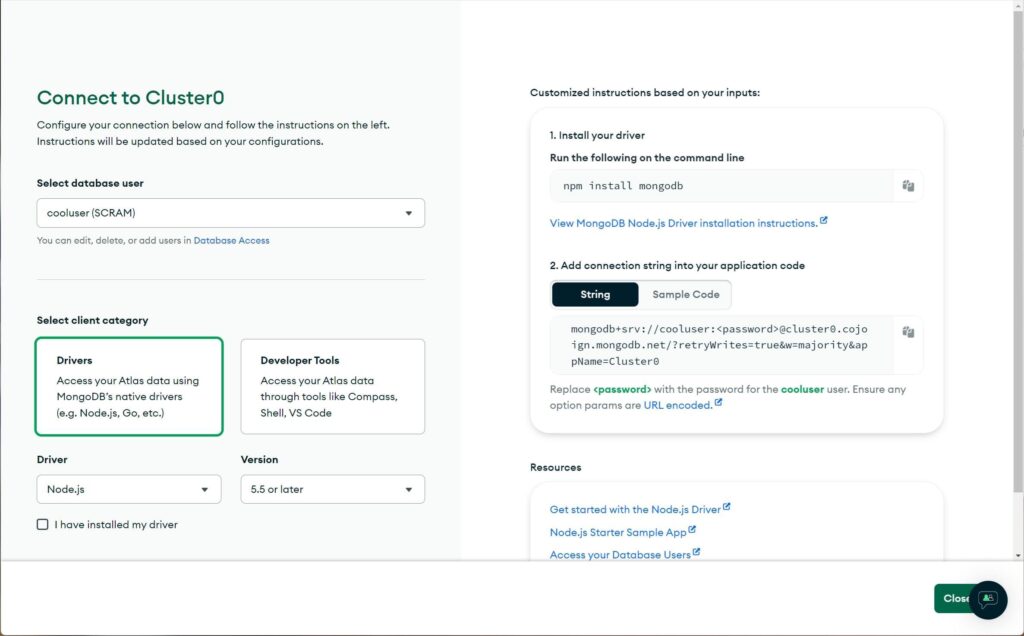
A valid Atlas URI typically looks like this:
mongodb+srv://username:password@cluster.mongodb.net/mydatabase
Review the following carefully:
✅ Username is correct
✅ Password is correct
✅ Database name exists
✅ No extra spaces
✅ Environment variables load correctly
✅ Special characters are encoded
For example, if your password contains:
my@password123
you should use:
my%40password123
because the @ character has special meaning inside URLs.
A surprising number of connection failures come from a single unencoded character.
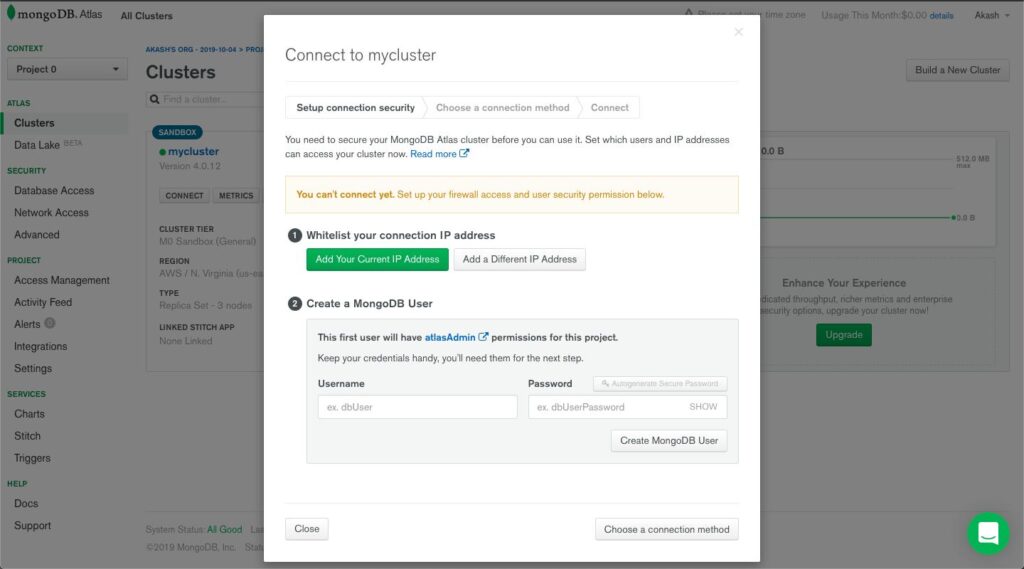
Check Your MongoDB Atlas Network Access Settings
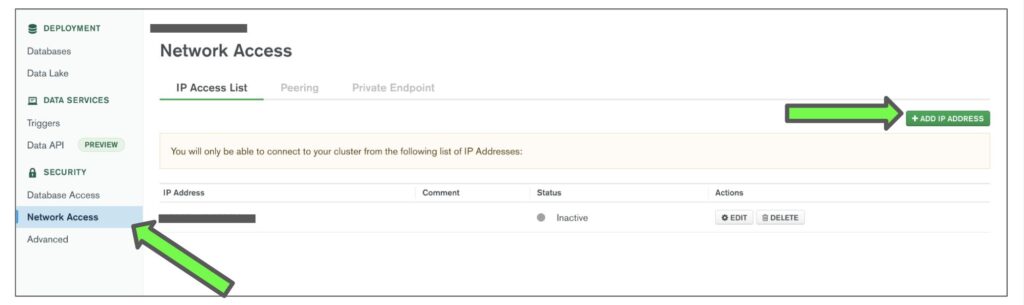
MongoDB Atlas uses IP-based security.
Even if everything else is configured correctly, Atlas will reject connection requests from unknown IP addresses.
To verify access:
- Log into MongoDB Atlas.
- Open your project.
- Navigate to Network Access.
- Review the allowed IP addresses.
For testing purposes, many developers temporarily allow:
0.0.0.0/0
This permits connections from any IP address.
While convenient for development, it’s not recommended for production systems.
Why Is My MongoDB Whitelist Not Working?
One of the most searched MongoDB issues is:
“mongodb network access whitelist not working”
In many cases, the whitelist itself is working correctly. The actual issue lies elsewhere.
Let’s look at the most common scenarios.
Your Public IP Changed
Many home internet connections use dynamic IP addresses.
You may whitelist your IP today and receive a different one tomorrow.
If your application suddenly stops connecting, check your current public IP and compare it with the value stored in Atlas.
You’re Connected Through a VPN
VPN services often route traffic through completely different locations.
Atlas sees the VPN server’s IP address—not your local one.
Temporarily disconnect the VPN and test the connection again.
Corporate or University Networks
Organizations frequently use firewalls, proxies, and network gateways.
The IP visible to Atlas may differ from the one displayed on your device.
This situation is especially common on campus networks and company-managed laptops.
Atlas Changes Haven’t Propagated Yet
Network access changes are usually fast, but occasionally they take a minute or two.
After updating the whitelist, wait briefly before testing again.
Verify Database User Credentials
When troubleshooting connection issues, many developers focus entirely on networking and forget authentication.
Open:
Database Access → Database Users
Confirm:
- The user exists
- The password is correct
- The user has sufficient privileges
For development environments, assigning read and write permissions is usually enough.
If you’re unsure whether credentials are the problem, create a temporary test user and try connecting with it.
How to Connect Mongoose to MongoDB Atlas From a Local Environment
A clean setup eliminates many common errors.
Install Mongoose
npm install mongoose
Create a Database Connection
const mongoose = require("mongoose");

mongoose.connect(process.env.MONGO_URI)
  .then(() => {
    console.log("MongoDB Connected");
  })
  .catch((error) => {
    console.error(error);
  });
Store Credentials in Environment Variables
Create a .env file:
MONGO_URI=mongodb+srv://username:password@cluster.mongodb.net/mydatabase
Load it in your application:
require("dotenv").config();
This approach improves security and reduces configuration mistakes when moving between development and production environments.
A Real-World Example
While helping a developer troubleshoot an employee management system, we spent nearly an hour reviewing the application code.
Everything looked correct.
The connection string was valid.
The database user was configured properly.
The issue turned out to be surprisingly simple: the developer’s internet router had restarted overnight, resulting in a new public IP address.
Atlas was blocking the connection because the new IP wasn’t whitelisted.
The fix took less than two minutes.
The debugging took an hour.
That’s why checking Network Access early can save significant time.
A Practical MongoDB Debugging Checklist
When a connection timeout occurs, work through this sequence.
Step 1: Verify Internet Connectivity
Confirm that your machine can access external websites and services.
Step 2: Check Atlas Cluster Status
Verify that:
- The cluster is running
- The cluster is not paused
- There are no active alerts
Step 3: Enable Mongoose Debugging
mongoose.set("debug", true);
This provides additional information about connection attempts.
Step 4: Listen for Connection Errors
mongoose.connection.on("error", (err) => {
  console.error(err);
});
Detailed logs often point directly to the root cause.
Step 5: Test DNS Resolution
Atlas uses SRV records through:
mongodb+srv://
Try:
nslookup cluster.mongodb.net
If DNS resolution fails, try another network or switch to a public DNS provider such as Google DNS or Cloudflare DNS.
Common Mistakes Developers Make
After troubleshooting many MongoDB issues, these mistakes appear repeatedly:
Forgetting to Update the Whitelist
Especially after changing networks or internet providers.
Using an Incorrect Environment Variable
A typo in .env can break the entire connection process.
Leaving Special Characters Unencoded
Characters such as:
@
#
%
&
must be URL encoded.
Connecting to the Wrong Database
Developers sometimes connect successfully but point to an unintended database.
Hardcoding Credentials
Avoid storing sensitive information directly in source code.
Environment variables are safer and easier to manage.
Best Practices for Reliable MongoDB Connections
To reduce future connection problems:
- Store credentials in environment variables
- Use separate users for development and production
- Restrict IP access in production
- Monitor Atlas alerts regularly
- Enable structured application logging
- Keep MongoDB drivers and Mongoose updated
- Implement proper error handling
- Test deployment environments before release
These habits prevent many issues before they occur.
Frequently Asked Questions
Why does Mongoose keep timing out?
The most common reasons are:
- Atlas blocking your IP address
- Incorrect credentials
- Invalid connection string
- DNS issues
- Firewall restrictions
Can I connect MongoDB Atlas to a local Node.js application?
Yes.
Your application can run locally while using a cloud-hosted MongoDB Atlas cluster.
This is one of the most common development setups.
What is MongooseServerSelectionError?
This error means Mongoose was unable to locate and connect to an available MongoDB server within the configured timeout period.
Is using 0.0.0.0/0 safe?
It’s acceptable for temporary development and testing.
For production applications, limit access to trusted IP addresses whenever possible.
How can I quickly determine whether Atlas is blocking my connection?
Navigate to Network Access in MongoDB Atlas and verify that your current public IP address is included in the allowed list.
Final Thoughts
A MongoDB timeout error often feels like a complex application problem, but in most cases the cause is much simpler.
Start with the fundamentals:
- Verify the connection string.
- Check Network Access settings.
- Confirm database credentials.
- Test DNS resolution.
- Review detailed logs.
Following this process systematically can save hours of unnecessary debugging.
When a mongoose connection timeout error or Node.js MongoDB Atlas connection failed message appears, resist the urge to immediately rewrite your code. More often than not, the solution is hidden in a configuration setting, network rule, or authentication detail.
A few minutes of structured troubleshooting usually gets everything back online.