
How to Set Up a Product Database in Supabase for a Mobile App (With Real-World Examples). A mobile shopping app can have a beautiful interface, smooth animations, and a polished checkout process, but none of that matters if the underlying product database is poorly designed.
I’ve seen developers spend days building product screens only to realize later that their database structure makes simple tasks—like filtering products, updating inventory, or displaying images—far more complicated than they need to be.
The good news is that Supabase provides a powerful PostgreSQL database that makes organizing product data straightforward, even for beginners.
In this guide, you’ll learn how to design a scalable product database in Supabase for a mobile app, including table structures, image handling, category relationships, and common mistakes to avoid.
Whether you’re building an e-commerce app with Flutter, React Native, or another framework, these principles will help you create a database that remains manageable as your product catalog grows.
Table of Contents
- Why Your Database Structure Matters
- What Supabase Brings to Mobile Development
- Planning Your Product Data
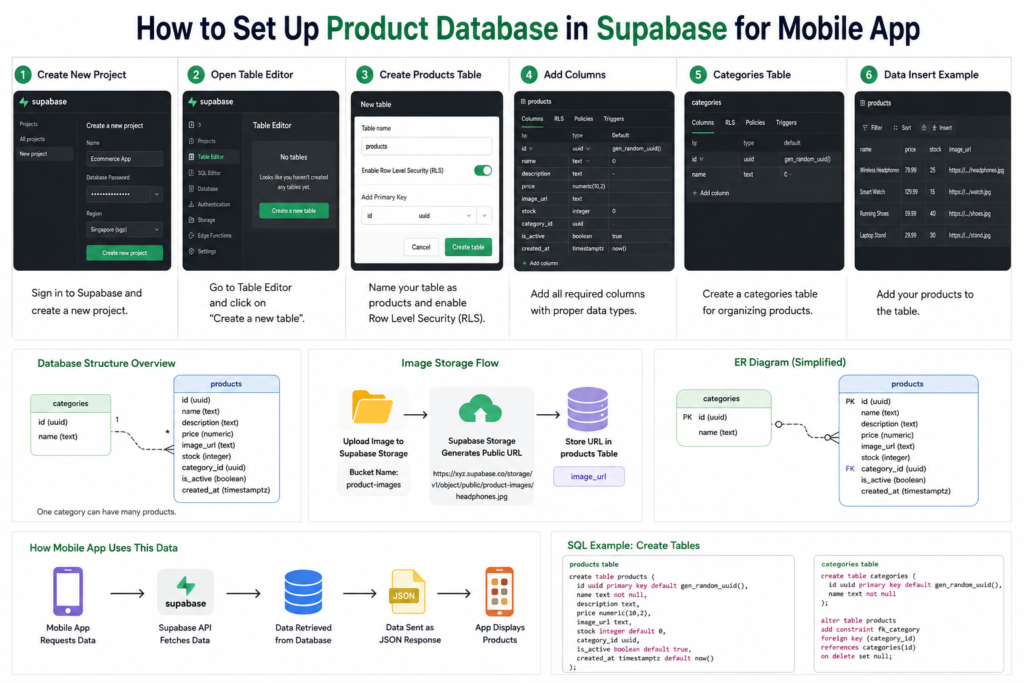
- Creating the Products Table
- Understanding Each Product Column
- Visual Database Structure
- How to Store Product Images Properly
- Creating Categories the Right Way
- Managing Product Inventory
- Sample Product Records
- Common Database Mistakes
- Performance Tips for Mobile Apps
- Frequently Asked Questions
- Final Thoughts
Why Your Database Structure Matters
Imagine you’re building an online clothing store.
At first, you only have ten products, so almost any database structure seems fine. Then six months later, you have hundreds of products, multiple categories, customer reviews, promotional offers, and inventory updates happening every day.
That’s when database design starts to matter.
A well-structured database helps you:
- Load products faster
- Search efficiently
- Prevent duplicate data
- Manage inventory accurately
- Scale without major redesigns
A poor structure usually leads to confusing queries, inconsistent data, and unnecessary maintenance work.
Getting the foundation right from the beginning saves a lot of time later.
What Supabase Brings to Mobile Development
Supabase combines several backend services into a single platform:
- PostgreSQL database
- Authentication
- File storage
- APIs
- Real-time functionality
For mobile developers, one of the biggest advantages is that every table automatically gets a RESTful API, allowing your app to read and update data without building a custom backend from scratch.
If you’ve previously worked with Firebase, you’ll notice that Supabase offers a traditional relational database model, which often feels more natural for e-commerce applications.
Planning Your Product Data Before Creating Tables
Before opening Supabase and clicking “Create Table,” spend a few minutes thinking about the information each product needs.
For a typical e-commerce application, you’ll likely store:
- Product name
- Description
- Price
- Product image
- Category
- Stock quantity
- Availability status
- Creation date
For example, a wireless headset product might contain:
| Field | Example Value |
|---|---|
| Name | Wireless Headphones |
| Price | 79.99 |
| Stock | 35 |
| Category | Electronics |
| Image | headphones.jpg |
| Status | Active |
Planning these fields first prevents constant database changes later.
Creating the Products Table
Inside Supabase:
- Open your project dashboard.
- Select Table Editor.
- Click New Table.
- Name the table:
products
- Enable Row Level Security (RLS).
- Create the table.
The products table will become the central source of information for your mobile app.
Recommended Products Table Structure
Here’s a practical table structure that works well for most online stores.
| Column | Type | Purpose |
|---|---|---|
| id | uuid | Unique identifier |
| name | text | Product name |
| description | text | Product details |
| price | numeric | Product price |
| image_url | text | Product image URL |
| stock | integer | Inventory quantity |
| category_id | uuid | Linked category |
| is_active | boolean | Product visibility |
| created_at | timestamp | Creation date |
SQL Example
create table products (
  id uuid primary key default gen_random_uuid(),
  name text not null,
  description text,
  price numeric(10,2),
  image_url text,
  stock integer default 0,
  category_id uuid,
  is_active boolean default true,
  created_at timestamp default now()
);
This structure is simple enough for beginners while remaining scalable for larger projects.
Understanding Each Product Column
Many beginners create columns without fully understanding their purpose.
Let’s break down the most important ones.
id
Every product needs a unique identifier.
Using UUIDs is generally safer than simple numeric IDs because they’re harder to guess and work well across distributed systems.
name
This is the title customers see in your app.
Examples:
- iPhone 15 Pro
- Running Shoes
- Bluetooth Speaker
price
Stores the product’s selling price.
Always use a numeric data type rather than text to support calculations and sorting.
stock
Tracks available inventory.
Example:
Bluetooth Speaker = 50 units
Customer purchases 2

Remaining Stock = 48
is_active
Instead of deleting products, many stores simply deactivate them.
This preserves historical sales records and reduces accidental data loss.
Visual Database Structure for an E-Commerce App
A clean e-commerce database usually follows this structure:
Categories
------------------
id
name

      |
      |
      ▼

Products
------------------
id
name
description
price
image_url
stock
category_id
created_at
A single category can contain many products.
Example:
Electronics
 ├─ Smartphone
 ├─ Laptop
 ├─ Smart Watch

Fashion
 ├─ T-Shirt
 ├─ Jacket
 ├─ Sneakers
This relationship keeps your data organized and makes filtering products much easier.
How to Store Product Images Properly
One of the most common beginner mistakes is storing image files directly inside the database.
Technically possible?
Yes.
Recommended?
Absolutely not.
Large image files make databases slower and harder to manage.
A better approach is:
Step 1: Upload Images to Supabase Storage
Create a bucket called:
product-images
Upload images such as:
iphone15.jpg
headphones.jpg
running-shoes.jpg
Step 2: Save the Public URL
Supabase generates a URL for each image.
Example:
https://yourproject.supabase.co/storage/v1/object/public/product-images/iphone15.jpg
Store only this URL in the database.
Why This Matters
Your app downloads the image directly from storage instead of loading large files through database queries.
The result is faster performance and easier maintenance.
Creating Categories the Right Way
A mistake I frequently see is storing category names inside every product record.
Example:
Electronics
Electronics
Electronics
Electronics
Repeated hundreds of times.
Instead, create a dedicated categories table.
create table categories (
  id uuid primary key default gen_random_uuid(),
  name text not null
);
Example categories:
- Electronics
- Fashion
- Books
- Home Decor
- Sports
Each product references the category using a category ID.
This approach keeps data clean and consistent.
Managing Product Inventory
Inventory management becomes important much sooner than most developers expect.
Even small stores need accurate stock tracking.
Example:
| Product | Stock |
|---|---|
| Wireless Headphones | 20 |
| Smart Watch | 15 |
| Laptop Stand | 35 |
When a customer places an order, your application should automatically reduce stock quantities.
Accurate inventory tracking prevents customers from purchasing products that are no longer available.
Example Product Record
A typical product record might look like this:
{
  "id": "7c1f4b",
  "name": "Wireless Headphones",
  "description": "Bluetooth noise-cancelling headphones",
  "price": 79.99,
  "image_url": "https://example.com/headphones.jpg",
  "stock": 25,
  "is_active": true
}
Most mobile frameworks can consume this data directly through Supabase APIs.
Common Database Mistakes That Cause Problems Later
Storing Images in Database Columns
Store image URLs, not image files.
Using Category Names Instead of IDs
This creates duplicate data and makes updates harder.
Ignoring Inventory Tracking
Adding stock management later often requires major changes.
Deleting Products Permanently
Using an is_active field is usually safer.
Poor Column Naming
Avoid names such as:
product1
itemdata
prodnew
Use descriptive names instead:
name
price
stock
image_url
description
Future-you will appreciate the clarity.
Performance Tips for Mobile Apps
As your product catalog grows, performance becomes increasingly important.
Add Database Indexes
Frequently searched fields such as:
- name
- category_id
should be indexed.
Optimize Images Before Uploading
A 5 MB image might look great, but it slows down mobile users on slower networks.
Compress images before uploading them.
Use Pagination
Avoid loading hundreds of products at once.
Instead:
Load 20 products
Load next 20 products
Load next 20 products
This creates a smoother user experience.
Keep Data Consistent
Regularly review products for:
- Duplicate entries
- Broken image URLs
- Incorrect pricing
- Outdated inventory
Clean data improves both performance and user trust.
Frequently Asked Questions
Is Supabase good for e-commerce apps?
Yes. Supabase offers a PostgreSQL database, storage, authentication, and APIs that work very well for small and medium-sized e-commerce applications.
Should I store images inside PostgreSQL?
Generally no. Store images in Supabase Storage and save only their URLs in the database.
Can I use this database structure with Flutter?
Absolutely. Flutter integrates well with Supabase and can easily fetch product data using generated APIs.
How many tables should an e-commerce app have?
A basic application typically starts with:
- Products
- Categories
As the project grows, you may add:
- Orders
- Users
- Reviews
- Wishlists
- Shopping Cart
- Coupons
Can stock quantities update automatically?
Yes. Your application can update stock values whenever orders are created, canceled, or refunded.
Final Thoughts
A product database isn’t something users ever see, but it affects almost every experience they have inside your app.
When products load quickly, images display correctly, filters work smoothly, and inventory stays accurate, it’s usually because the database was designed thoughtfully from the beginning.
For most mobile e-commerce projects, a combination of a well-structured products table, separate categories table, Supabase Storage for images, and proper inventory tracking provides a reliable foundation.
Start with a clean schema, keep relationships simple, and resist the temptation to store everything in one table. Your future self—and your users—will thank you for it.
How to Build a Functional E-Commerce App Using React Native and AI Prompts

About Amish
Hi, I’m Amish, and developer.
I write practical React Native, Node.js, MongoDB, and Supabase tutorials based on real projects and testing.
[…] Read about How to Set Up a Product Database in Supabase for a Mobile App (With Real-World Examples) – kno… […]
[…] How to Set Up a Product Database in Supabase for a Mobile App (With Real-World Examples) – kno… […]
[…] How to Set Up a Product Database in Supabase for a Mobile App (With Real-World Examples) – kno… […]