
Troubleshooting Expo Router Navigation Errors in AI-Generated Code: A Practical Fix Guide. Building React Native apps has become much faster thanks to AI coding tools. Whether you’re using ChatGPT, Cursor, Claude, GitHub Copilot, or Windsurf, it’s now possible to generate entire screens, navigation flows, and components in minutes.
But there’s one area where AI-generated code still regularly causes headaches: Expo Router navigation.
A common scenario looks like this:
You ask an AI tool to create a product listing page and a product details screen.
The homepage loads perfectly.
The products appear.
You tap a product card…
And suddenly nothing works.
You might see:
- “Route not found”
- “Unmatched route”
- A blank screen
- Undefined route parameters
- Navigation that silently fails
If you’ve encountered one of these issues, you’re not alone.
After reviewing dozens of AI-generated Expo projects, I’ve noticed that most navigation problems come from the same handful of mistakes. The good news is that they’re usually easy to identify and fix once you know where to look.
This guide walks through the most common Expo Router navigation errors, explains why AI tools create them, and shows how to fix them quickly.
Table of Contents
- Why AI-Generated Expo Router Code Breaks
- Understanding How Expo Router Works
- The Five Most Common Navigation Errors
- Fix #1: Check Your Folder Structure
- Fix #2: Match Dynamic Route Parameters
- Fix #3: Pass Navigation Parameters Correctly
- Fix #4: Verify Link Components
- Fix #5: Make Sure Routes Actually Exist
- A Real Debugging Example
- Common AI Coding Mistakes to Watch For
- Best Practices for Future Projects
- Frequently Asked Questions
- Final Takeaway
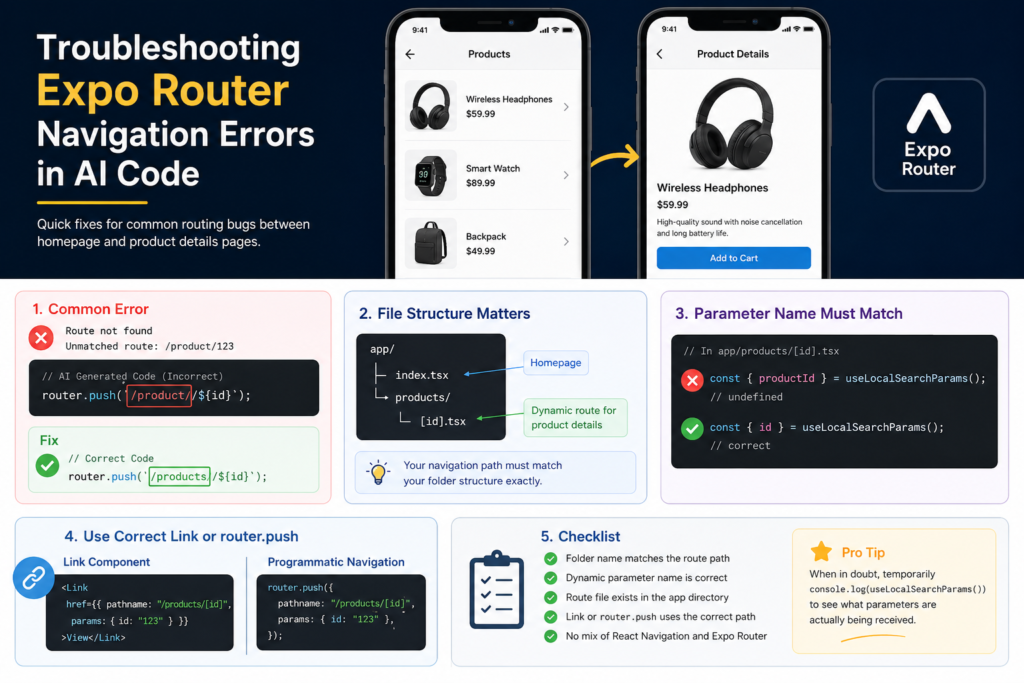
Why AI-Generated Expo Router Code Breaks
AI tools are excellent at generating code patterns they’ve seen before.
The problem is that they don’t always understand your specific project structure.
For example, an AI assistant might generate:
router.push("/product/123");
because it assumes your route folder is named product.
However, your actual project may look like this:
app/
└── products/
    └── [id].tsx
In that case, the correct route would be:
router.push("/products/123");
That single missing letter is enough to break navigation.
These mistakes happen because AI predicts likely code rather than inspecting every file in your project.
That’s why developers should always review generated routing code before moving on.
Understanding How Expo Router Works
Before fixing routing errors, it’s helpful to understand what Expo Router is doing behind the scenes.
Expo Router uses a file-based routing system.
Every file inside your app directory automatically becomes a route.
For example:
app/
├── index.tsx
├── products/
│   └── [id].tsx
Generates routes similar to:
/
and
/products/:id
Unlike traditional navigation libraries where routes are manually registered, Expo Router relies entirely on folder and file names.
This means your navigation paths must match your project structure exactly.
The Five Most Common Expo Router Navigation Errors
In real-world projects, most routing problems fall into one of these categories:
1. Folder Name Mismatch
Navigation points to a folder that doesn’t exist.
2. Incorrect Dynamic Parameter Names
The route expects one parameter name while the screen reads another.
3. Broken Navigation Links
Links point to invalid paths.
4. Missing Route Files
The navigation references a screen that was never created.
5. Mixed Navigation Systems
AI combines Expo Router code with React Navigation code.
Let’s examine each issue individually.
Fix #1: Check Your Folder Structure First
When navigation breaks, the first thing I check is the app directory.
Suppose your structure looks like this:
app/
├── index.tsx
└── products/
    └── [id].tsx
Your navigation must follow that structure.
Correct:
router.push("/products/123");
Incorrect:
router.push("/product/123");
Incorrect:
router.push("/details/123");
Incorrect:
router.push("/item/123");
A surprising number of routing issues are solved within minutes simply by comparing navigation paths against folder names.
Quick Debugging Tip
Whenever navigation fails, open your app folder and verify the route path letter by letter.
Don’t assume the AI got it right.
Fix #2: Match Dynamic Route Parameters
Dynamic routes are another area where AI-generated code often goes wrong.
Imagine your file is named:
[id].tsx
Inside the screen, you should retrieve the parameter like this:
const { id } = useLocalSearchParams();
However, AI tools frequently generate:
const { productId } = useLocalSearchParams();
The route provides id, but the screen is looking for productId.
The result?
undefined
and your details page fails to load the correct data.
Rule of Thumb
If the route file is named:
[id].tsx
Use:
const { id } = useLocalSearchParams();
If the route file is:
[productId].tsx
Use:
const { productId } = useLocalSearchParams();
The names must match exactly.
Fix #3: Pass Navigation Parameters Correctly
Most developers start with string-based navigation:
router.push(`/products/${product.id}`);
This works perfectly for many apps.
However, for larger projects, object-based navigation is often more reliable:
router.push({
  pathname: "/products/[id]",
  params: {
    id: product.id,
  },
});
Why?
Because Expo Router handles parameter injection automatically.
It also makes debugging easier when multiple parameters are involved.
For example:
router.push({
  pathname: "/products/[id]",
  params: {
    id: product.id,
    category: product.category,
  },
});
This approach tends to be less error-prone than manually constructing URLs.
Fix #4: Verify Your Link Components
Many AI-generated projects use incorrect Link destinations.
For example:
<Link href="/details">
while the actual route is:
/products/[id]
The result is a navigation error as soon as the user taps the link.
A safer approach is:
<Link href="/products/123">
Or:
<Link
  href={{
    pathname: "/products/[id]",
    params: {
      id: "123",
    },
  }}
>
Whenever links fail, compare the href value against your route structure.
Most problems become obvious immediately.
Fix #5: Make Sure the Route Actually Exists
This sounds obvious, but it’s surprisingly common.
AI tools often generate navigation code before generating the corresponding screen.
You may see code like:
router.push("/products/123");
while the project structure looks like:
app/
├── index.tsx
There is no product details screen at all.
Naturally, Expo Router throws a routing error.
The correct structure should include:
app/
└── products/
    └── [id].tsx
Before spending time debugging, confirm that the destination route actually exists.
A Real Debugging Example
A developer recently asked me why their AI-generated e-commerce app wouldn’t open product details pages.
Their homepage contained:
router.push(`/product/${id}`);
The route file was:
app/products/[id].tsx
Notice the mismatch:
product
vs
products
Everything else was correct.
After changing the navigation path to:
router.push(`/products/${id}`);
the issue was resolved instantly.
The entire debugging session took less than two minutes.
This is exactly why folder structure should always be your first checkpoint.
Common AI Coding Mistakes to Watch For
When reviewing AI-generated Expo Router code, look for these warning signs:
Singular and Plural Route Confusion
/product
vs
/products
Incorrect Parameter Names
productId
vs
id
Missing Route Files
Navigation points to screens that don’t exist.
Mixed Navigation Approaches
Sometimes AI combines:
navigation.navigate()
with:
router.push()
inside the same project.
Choose one navigation system and stay consistent.
Missing Imports
Verify that all required Expo Router imports are present.
Best Practices for Expo Router Projects
To avoid future routing problems:
Keep Route Structures Predictable
Good examples:
products
orders
users
settings
Clear naming reduces mistakes.
Test Navigation Early
Before building advanced features:
- Open every screen
- Test every product card
- Verify dynamic routes
- Test invalid URLs
Early testing prevents bigger issues later.
Review AI Output Carefully
AI tools can save hours of development time.
They can also introduce subtle bugs that are difficult to spot at first glance.
Treat generated code as a starting point, not a final solution.
Use TypeScript When Possible
TypeScript catches many routing and parameter-related mistakes before the app even runs.
This provides an extra layer of protection against navigation bugs.
Frequently Asked Questions
Why does Expo Router show “Route Not Found”?
This usually means:
- The route file doesn’t exist
- The path is incorrect
- The folder name doesn’t match the navigation path
Start by checking your project structure.
Why is useLocalSearchParams() returning undefined?
The most common cause is a parameter name mismatch.
For example:
[id].tsx
must be accessed using:
const { id } = useLocalSearchParams();
Can AI tools generate reliable Expo Router code?
Yes, but routing is still one of the areas where mistakes occur most often.
Always verify:
- Route paths
- Folder names
- Dynamic parameters
- Screen locations
before shipping code to production.
Should I use Link or router.push()?
Use Link when users tap UI elements such as buttons or cards.
Use router.push() when navigation is triggered programmatically, such as after form submission or authentication.
Final Takeaway
Most Expo Router navigation errors aren’t caused by complex bugs. They’re usually the result of small mismatches between your navigation code and your file structure.
When a homepage won’t open a product details screen, check these five things first:
- Folder names
- Route paths
- Dynamic parameter names
- Link destinations
- Route file existence
In many cases, you’ll find the problem within a few minutes.
AI coding tools can dramatically speed up React Native development, but navigation is one area where human review still matters. A quick inspection of your routes before testing can save hours of debugging later.
Read about The Ultimate React Native Beginner Roadmap (2026 Edition) – knowabteverything
The 3-Line Flexbox Trick That Centers Anything in React Native – knowabteverything
How to Build a Functional E-Commerce App Using React Native and AI Prompts
Read about Expo Documentation

About Amish
Hi, I’m Amish, and developer.
I write practical React Native, Node.js, MongoDB, and Supabase tutorials based on real projects and testing.