
How to Fix the “Command Not Found: expo” Error on Windows and Mac (A Practical PATH Troubleshooting Guide). You’ve installed Expo, opened your terminal, typed:
expo start
and immediately received one of these messages:
expo: command not found
or on Windows:
'expo' is not recognized as an internal or external command
If you’re setting up your first React Native project, this error can be frustrating. The good news is that it’s usually caused by a simple configuration issue rather than a broken installation.
In most cases, your computer either can’t find the Expo executable or Expo was never installed correctly in the first place.
I’ve seen this issue repeatedly when helping students and junior developers set up React Native environments. Often, the fix takes less than five minutes once you know where to look.
This guide walks through the most reliable solutions for both Windows and macOS, explains why the error happens, and helps you avoid common setup mistakes in future projects.
Table of Contents
- What Does the “Command Not Found: expo” Error Mean?
- Why Expo Can’t Be Found
- Check Whether Expo Is Installed
- Verify Your Node.js Installation
- Fix the Error on Windows
- Fix the Error on macOS
- Understanding PATH Variables
- Common Causes Developers Overlook
- Should You Use
npx expoInstead? - Real-World Troubleshooting Example
- Quick Troubleshooting Checklist
- Frequently Asked Questions
- Final Takeaway
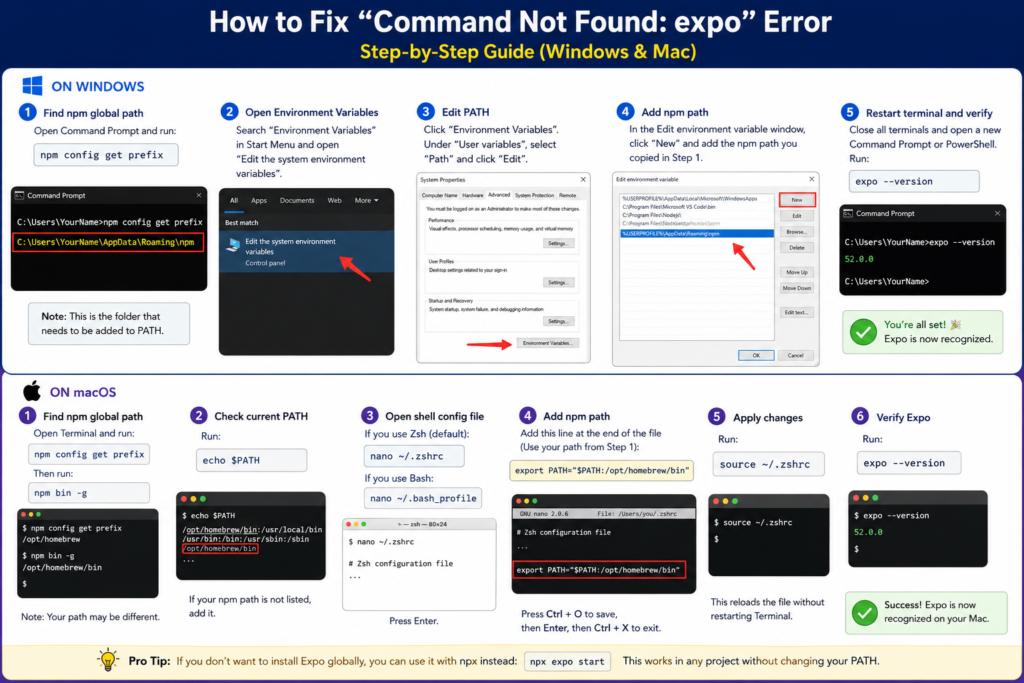
What Does the “Command Not Found: expo” Error Mean?
When you run a command in your terminal, your operating system searches specific directories to locate the executable file associated with that command.
For example:
node
git
npm
expo
all work because your system knows where those programs are located.
When you see:
expo: command not found
or
'expo' is not recognized as an internal or external command
your computer is essentially saying:
“I searched the locations I know about, but I couldn’t find anything named Expo.”
The issue is usually related to one of these situations:
- Expo is not installed.
- Node.js was installed incorrectly.
- The npm global package directory isn’t included in your PATH.
- The terminal hasn’t been restarted after installation.
- Multiple Node.js installations are causing conflicts.
Why Expo Can’t Be Found
The most common culprit is a missing PATH entry.
Think of PATH as a list of locations your computer checks whenever you run a command.
Imagine telling a friend to find a book in a library but only giving them access to three shelves. Even if the book exists elsewhere in the building, they won’t find it.
Your terminal works the same way.
If Expo exists but its folder isn’t listed in PATH, the terminal behaves as though Expo doesn’t exist.
Step 1: Check Whether Expo Is Installed
Before changing any system settings, verify that Expo is actually installed.
Run:
npm list -g expo-cli
You can also view all globally installed packages:
npm list -g --depth=0
If Expo appears in the results, the installation exists and the issue is likely related to PATH configuration.
If it doesn’t appear, install Expo using the current recommended approach:
npm install -g expo
Then verify:
expo --version
Step 2: Verify Your Node.js Installation
Expo depends on Node.js.
Check whether Node is available:
node -v
Check npm:
npm -v
A healthy installation should return version numbers similar to:
v22.5.0
10.8.2
If either command produces an error, fix the Node.js installation before troubleshooting Expo.
Quick Tip
Many Expo setup issues disappear after installing the latest stable version of Node.js and restarting the terminal.
How to Fix the Error on Windows
Windows users most commonly encounter this issue because the npm global package directory isn’t included in PATH.
Find Your npm Global Directory
Open Command Prompt and run:
npm config get prefix
You’ll usually see something similar to:
C:\Users\YourName\AppData\Roaming\npm
This folder contains executable files such as:
expo.cmd
npm.cmd
npx.cmd
If Windows doesn’t know about this folder, Expo commands won’t work.
Add npm to Your PATH
- Press Windows Key
- Search for:
Environment Variables - Open Edit the system environment variables
- Click Environment Variables
- Under User Variables, select Path
- Click Edit
- Select New
- Add your npm directory:
C:\Users\YourName\AppData\Roaming\npm - Save all changes.
Restart Your Terminal
This step is often forgotten.
Close:
- Command Prompt
- PowerShell
- Windows Terminal
- VS Code
Open a fresh terminal window and run:
expo --version
If you see a version number, the problem is solved.
How to Fix the Error on macOS
On macOS, the issue usually involves shell configuration files such as .zshrc or .bash_profile.
Find npm’s Installation Location
Run:
npm config get prefix
Common outputs include:
/usr/local
or
/opt/homebrew
Now check:
npm bin -g
You may see:
/usr/local/bin
or
/opt/homebrew/bin
Check Your Current PATH
Run:
echo $PATH
Look through the output.
If your npm directory isn’t listed, add it manually.
Update Zsh Configuration
Most modern Mac systems use Zsh.
Open:
nano ~/.zshrc
Add:
export PATH="$PATH:/opt/homebrew/bin"
Adjust the path if npm returned a different location.
Save the file and run:
source ~/.zshrc
Update Bash Configuration (Older Macs)
If you’re using Bash:
nano ~/.bash_profile
Add:
export PATH="$PATH:/usr/local/bin"
Then run:
source ~/.bash_profile
Verify the Fix
Test Expo again:
expo --version
A version number confirms that your terminal can now locate the executable.
Understanding PATH Variables Without the Technical Jargon
Many tutorials mention PATH but rarely explain it clearly.
Here’s the simplest explanation:
PATH is a list of folders your operating system searches whenever you type a command.
For example:
git
node
python
expo
When the terminal receives one of these commands, it checks every folder in PATH until it finds a matching executable.
If the folder containing Expo isn’t listed, the command fails—even though Expo may already be installed.
That’s why correcting PATH fixes so many “command not found” errors.
Common Causes Developers Overlook
After helping dozens of new developers troubleshoot React Native setups, these are the mistakes that appear most often.
Forgetting to Restart the Terminal
Environment changes don’t affect already-open terminal windows.
Always reopen your terminal after editing PATH.
Following Outdated Tutorials
Many older guides recommend:
npm install -g expo-cli
Modern Expo development has changed significantly.
Following outdated setup instructions can create unnecessary confusion.
Multiple Node.js Installations
This is surprisingly common.
Developers install:
- Node.js directly
- Homebrew Node
- NVM-managed Node
The system then becomes unsure which version to use.
Check your active installation:
Windows
where node
macOS
which node
If multiple locations appear, you may have a conflict.
Running Commands in the Wrong Terminal
VS Code, PowerShell, Git Bash, Terminal, and Windows Terminal can each load slightly different configurations.
If Expo works in one terminal but not another, compare the PATH values in both environments.
Should You Use npx expo Instead?
For most modern projects, yes.
Instead of:
expo start
use:
npx expo start
This approach offers several advantages:
- No global Expo dependency
- Fewer version conflicts
- Easier upgrades
- Better compatibility across teams
- Recommended for many current workflows
Creating a new project typically looks like:
npx create-expo-app my-app
Then:
cd my-app
npx expo start
For many developers, this completely avoids global installation issues.
Real-World Troubleshooting Example
A student recently contacted me after spending nearly an hour trying to launch a React Native project.
Node.js was installed correctly.
Expo was installed correctly.
Yet every attempt to run:
expo start
produced:
'expo' is not recognized as an internal or external command
After checking:
npm config get prefix
we discovered that npm packages were installed in:
C:\Users\Student\AppData\Roaming\npm
That directory wasn’t included in PATH.
Once it was added and VS Code was restarted, the command worked immediately.
The actual fix took less than two minutes.
The lesson? Always check PATH before uninstalling and reinstalling software.
Quick Troubleshooting Checklist
Before trying advanced fixes, verify the following:
✅ Node.js is installed
✅ npm is working
✅ Expo is installed
✅ PATH contains the npm global directory
✅ Terminal has been restarted
✅ No conflicting Node.js installations exist
✅ You’re using the correct shell
✅ You’ve tested npx expo start
✅ You’re following a current Expo setup guide
Frequently Asked Questions
Why does Expo work in VS Code but not in Command Prompt?
The two environments may load different PATH configurations.
Compare the output of:
echo %PATH%
on Windows or:
echo $PATH
on macOS.
Do I need a global Expo installation?
Not necessarily.
Many developers now use:
npx expo start
which removes the need for a global installation altogether.
How can I tell if PATH is the problem?
If Expo appears in your installed npm packages but the terminal still cannot find it, PATH is the most likely cause.
Is reinstalling Expo usually necessary?
No.
Most cases are configuration-related rather than installation-related.
Checking PATH first can save a lot of time.
Does this affect React Native development?
Yes.
Because Expo is commonly used alongside React Native, this error frequently appears during project setup and onboarding.
Final Takeaway
The “Command Not Found: expo” error almost always comes down to one simple issue: your system can’t locate the Expo executable.
Start by confirming that Node.js and Expo are installed correctly. Then verify that the npm global package directory is included in your PATH environment variable. In many cases, that’s all it takes.
If you’re starting a new Expo project today, consider using npx expo instead of relying on a global installation. It simplifies setup, reduces version conflicts, and aligns with current Expo development practices.
The next time you encounter a terminal message saying a command can’t be found, don’t immediately reinstall everything. Check the PATH first. More often than not, that’s where the real problem is hiding.
Read about How to Configure Environment Variables (.env) Safely in React Native Expo – knowabteverything
Top 50 React Native Interview Questions & Answers (2026 Edition Part 1) – knowabteverything
Why Is My FlatList Not Updating When State Changes? 4 Fast Solutions – knowabteverything

About Amish
Hi, I’m Amish, and developer.
I write practical React Native, Node.js, MongoDB, and Supabase tutorials based on real projects and testing.
[…] How to Fix the “Command Not Found: expo” Error on Windows and Mac (A Practical PATH Troubleshoot… […]