
Fix React Native Image Picker Permission Denied: 4 Simple Steps (Android & iOS Guide) Nothing is more frustrating than building an image upload feature, testing it on your phone, and seeing everything work perfectly—only to have users report a “Permission Denied” error the moment they try to select a photo.
I’ve seen this happen in production apps more than once. In most cases, the image picker library isn’t the problem. The issue usually comes down to Android permission changes, missing runtime requests, or users who have previously denied access.
If you’re facing the react native image picker permission denied error, this guide walks through the exact fixes that work on modern Android and iOS devices, including Android 13 and Android 14.
By the end, you’ll know how to:
- Configure permissions correctly
- Handle Android version differences
- Request access at runtime
- Deal with permanently blocked permissions
- Create a smoother user experience when access is denied
Table of Contents
- What Causes the React Native Image Picker Permission Denied Error?
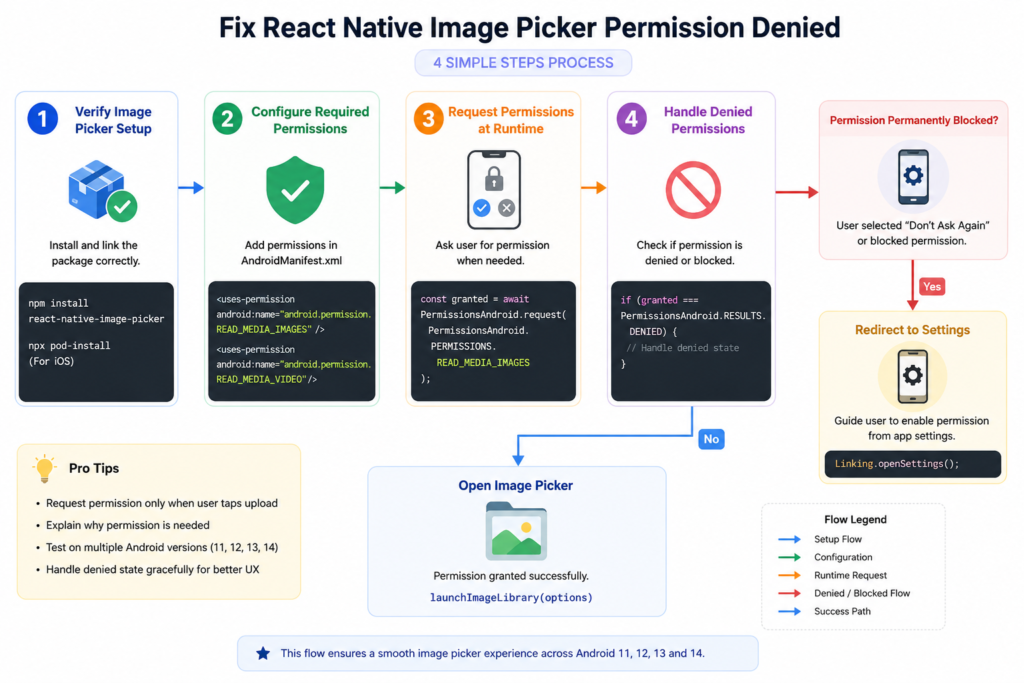
- Step 1: Verify Your Image Picker Setup
- Step 2: Configure Required Permissions
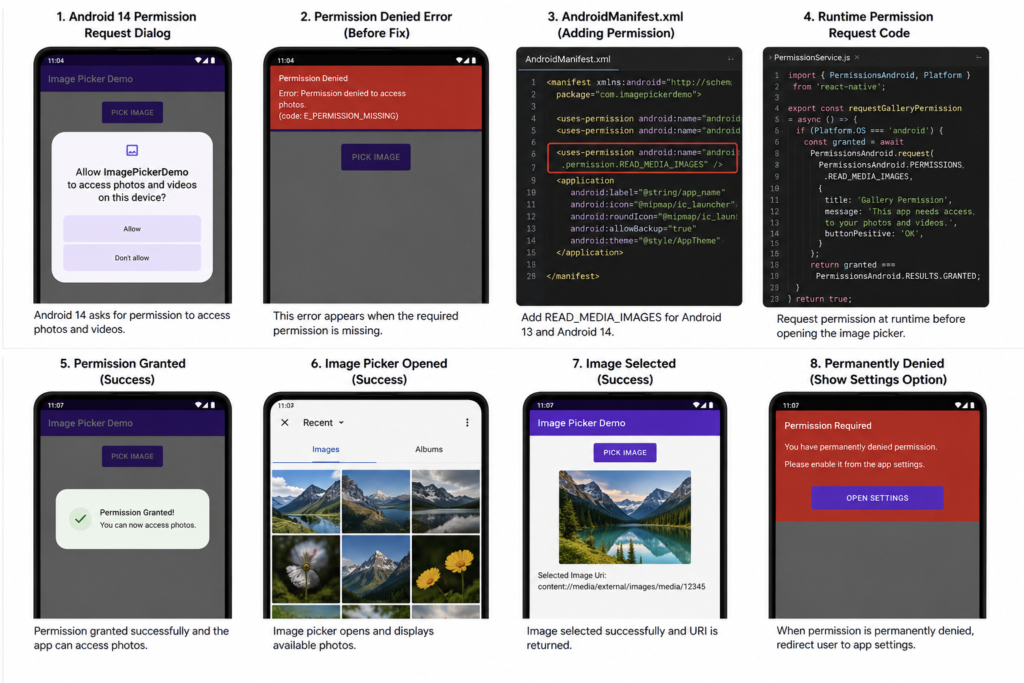
- Fixing Image Picker Permission Denied on Android 13 and 14
- Step 3: Request Permissions at Runtime
- Step 4: Handle Permanently Denied Permissions
- How to Redirect Users to Settings When Permission is Permanently Blocked
- Common Mistakes That Cause Permission Errors
- Best Practices for a Better Upload Experience
- Frequently Asked Questions
- Final Takeaway
What Causes the React Native Image Picker Permission Denied Error?
When users tap an upload button, your app needs permission from the operating system before it can access photos or videos stored on the device.
If that permission isn’t available, Android or iOS blocks access and the image picker may fail to open or return an error.
Common causes include:
- Missing permissions in the app configuration
- Not requesting permissions at runtime
- Android 13 permission changes
- User denying permission access
- User selecting “Don’t Ask Again”
- Outdated code written for older Android versions
A typical error might appear as:
Error: Permission denied
or
Unable to access media library
The good news is that these issues are usually easy to fix once you identify which permission flow is breaking.
Step 1: Verify Your Image Picker Setup
Before diving into permissions, confirm that your image picker package is installed and configured correctly.
Most React Native projects use:
npm install react-native-image-picker
or
yarn add react-native-image-picker
For iOS, don’t forget:
npx pod-install
After installation, run a quick test to verify the picker launches successfully.
import {launchImageLibrary} from 'react-native-image-picker';

launchImageLibrary({
  mediaType: 'photo',
});
If the picker never appears, the issue may be related to installation or project configuration rather than permissions.
A Quick Reality Check
One common mistake is assuming a permission issue exists because the picker doesn’t open.
In several projects I’ve reviewed, the real problem was:
- An incomplete package installation
- Missing CocoaPods dependencies
- A build that wasn’t refreshed after installing the library
Always verify the basics first.
Step 2: Configure Required Permissions
Once the image picker is working correctly, the next step is ensuring Android has permission to access media files.
For older Android versions, developers commonly add:
<uses-permission android:name="android.permission.READ_EXTERNAL_STORAGE"/>
Some apps also include:
<uses-permission android:name="android.permission.WRITE_EXTERNAL_STORAGE"/>
While this setup worked for years, Android’s permission model has changed significantly.
That’s where many existing applications begin to fail.
Fixing Image Picker Permission Denied on Android 13 and 14
Android 13 introduced a more privacy-focused approach to media access.
Instead of granting broad storage permissions, users now approve access to specific media categories.
Required Permissions for Android 13+
For photo access:
<uses-permission android:name="android.permission.READ_MEDIA_IMAGES"/>
For video access:
<uses-permission android:name="android.permission.READ_MEDIA_VIDEO"/>
If your app only uploads images, requesting image permission alone is usually sufficient.
Why Older Code Breaks
Consider an app built in 2021.
The developer added:
READ_EXTERNAL_STORAGE
The app works perfectly on Android 11 and Android 12.
A user later installs the same app on Android 14.
Suddenly image selection fails because Android now expects:
READ_MEDIA_IMAGES
Nothing changed in the image picker library. The operating system simply uses a different permission model.
This is one of the most common reasons developers encounter the react native image picker permission denied issue today.
Check Android Version Before Requesting Permissions
import {Platform} from 'react-native';

const isAndroid13OrAbove =
  Platform.OS === 'android' &&
  Platform.Version >= 33;
This allows you to request the correct permission based on the device version.
Step 3: Request Permissions at Runtime
A common misconception is that adding permissions to the Android manifest automatically grants access.
It doesn’t.
Android still requires the user to approve access while the app is running.
Here’s a simple example:
import {PermissionsAndroid} from 'react-native';

const requestPermission = async () => {
  const granted = await PermissionsAndroid.request(
    PermissionsAndroid.PERMISSIONS.READ_MEDIA_IMAGES
  );

  return granted === PermissionsAndroid.RESULTS.GRANTED;
};
Before opening the picker:
const hasPermission = await requestPermission();

if (hasPermission) {
  launchImageLibrary({
    mediaType: 'photo',
  });
}
Test Like a Real User
One lesson many developers learn the hard way:
Your own device isn’t always a reliable test environment.
You may have granted permissions weeks ago and forgotten about it.
To properly test:
- Uninstall the app completely
- Reinstall it
- Test the upload flow from scratch
This reveals issues that existing permissions can hide.
Step 4: Handle Permanently Denied Permissions
Not every user grants permission immediately.
Some tap Deny.
Others select Don’t Ask Again.
When that happens, Android stops displaying the permission dialog altogether.
If your app keeps requesting permission without explanation, users often think the upload feature is broken.
A better approach is to clearly explain why access is required.
For example:
We need access to your photos so you can upload profile pictures and attachments.
A short explanation often improves permission approval rates significantly.
How to Redirect Users to Settings When Permission is Permanently Blocked
Once a user chooses Don’t Ask Again, the standard permission popup can no longer help.
The only solution is guiding them to the application settings page.
React Native makes this straightforward with the Linking API.
Open the App Settings Screen
import {Linking} from 'react-native';

const openAppSettings = () => {
  Linking.openSettings();
};
Show a Helpful Alert
Alert.alert(
  'Permission Required',
  'Photo access is disabled. Please enable it in Settings.',
  [
    {
      text: 'Open Settings',
      onPress: () => Linking.openSettings(),
    },
    {
      text: 'Cancel',
      style: 'cancel',
    },
  ]
);
Why This Matters
Imagine a user updating their profile picture.
Without guidance:
- They tap Upload.
- Nothing happens.
- They abandon the action.
With a settings redirect:
- They understand the issue.
- They know exactly how to fix it.
- They successfully complete the upload.
Good permission handling isn’t just about preventing errors. It’s about removing friction from the user journey.
Common Mistakes That Cause Permission Errors
Using Outdated Android Permissions
Many tutorials still recommend:
READ_EXTERNAL_STORAGE
While useful for older Android versions, it isn’t enough for Android 13 and above.
Forgetting Runtime Requests
Adding permissions to the manifest alone will not grant access.
Users must explicitly approve the request.
Testing on Only One Device
Permission behavior can vary between:
- Android 11
- Android 12
- Android 13
- Android 14
Testing across multiple devices helps catch version-specific issues early.
Not Handling Denied States
A blank screen or silent failure creates confusion.
Always provide clear feedback when permissions are missing.
Best Practices for a Better Upload Experience
Beyond fixing the error itself, these practices help create a more professional application.
Explain the Benefit
Avoid generic messages like:
Permission Required
Instead, tell users why access is needed:
Allow photo access to upload profile pictures and attachments.
Request Permission at the Right Time
Don’t ask for media access when the app launches.
Request it when users actually attempt to:
- Upload a photo
- Change a profile picture
- Attach an image to a form
Context increases approval rates.
Offer Alternative Options
If image access fails, consider:
- Camera capture
- Document picker support
- File upload alternatives
This gives users another path forward.
Monitor Permission Failures
Tools such as:
- Firebase Crashlytics
- Sentry
- Bugsnag
can help identify recurring permission issues on specific devices or Android versions.
Frequently Asked Questions
Why does React Native Image Picker work on Android 12 but fail on Android 14?
Android 13 introduced media-specific permissions such as:
READ_MEDIA_IMAGES
Apps relying only on older storage permissions may stop working on newer Android versions.
Do I still need READ_EXTERNAL_STORAGE?
If your application supports older Android versions, you may still need it.
For Android 13 and newer, media-specific permissions are generally recommended.
Should I request permissions when the app starts?
Usually not.
Permissions are more likely to be granted when users understand why they’re being requested.
What happens if users tap “Don’t Ask Again”?
Android prevents future permission prompts.
The user must manually enable access through the application’s settings page.
Does iOS have similar permission requirements?
Yes.
iOS requires photo library permissions and usage descriptions in the app configuration before users can access media.
Final Takeaway
The react native image picker permission denied error almost always comes down to one of four issues:
- Incorrect package setup
- Missing platform permissions
- No runtime permission request
- Permanently denied access
For modern Android devices, especially Android 13 and Android 14, make sure you’re requesting READ_MEDIA_IMAGES rather than relying solely on legacy storage permissions.
The most reliable implementation combines:
- Proper manifest configuration
- Android version checks
- Runtime permission requests
- Clear user messaging
- A settings redirect for blocked permissions
Once these pieces are in place, image uploads become far more reliable, support requests decrease, and users can complete uploads without frustration.
The Ultimate React Native Beginner Roadmap (2026 Edition) – knowabteverything
Why Is My FlatList Not Updating When State Changes? 4 Fast Solutions – knowabteverything
The 3-Line Flexbox Trick That Centers Anything in React Native – knowabteverything

About Amish
Hi, I’m Amish, and developer.
I write practical React Native, Node.js, MongoDB, and Supabase tutorials based on real projects and testing.
[…] Fix React Native Image Picker Permission Denied: 4 Simple Steps (Android & iOS Guide) – kn… […]
[…] Fix React Native Image Picker Permission Denied: 4 Simple Steps (Android & iOS Guide) – kn… […]
[…] Fix React Native Image Picker Permission Denied: 4 Simple Steps (Android & iOS Guide) – kn… […]