
The 3-Line Flexbox Trick That Centers Anything in React Native. Every React Native developer eventually runs into the same problem.
You need to center a loading spinner, welcome message, button, or empty-state screen. You try adding justifyContent: 'center', but nothing happens. Then you add random margins, fixed heights, and extra wrapper views until the layout finally looks right on your phone—only to break on another device.
The good news is that React Native already provides a simple, reliable solution.
In most cases, perfectly centering content requires just three lines:
{
  flex: 1,
  justifyContent: 'center',
  alignItems: 'center',
}
That’s the entire trick.
Once you understand why these three properties work together, you’ll spend far less time fighting layouts and far more time building features.
Table of Contents
- The 3-Line Flexbox Pattern
- Why It Works
- React Native Flexbox vs Web Flexbox
- Understanding Main Axis and Cross Axis
- Common Centering Problems (and Fixes)
- Centering Text Inside a TextInput
- Centering Content in SafeAreaView
- Centering Elements in Absolute Containers
- Centering Icons Inside Circle Buttons
- Real-World Examples
- Common Mistakes to Avoid
- FAQ
- Key Takeaways
The 3-Line Flexbox Trick That Centers Anything in React Native. The 3-Line Flexbox Pattern
Here’s the exact code you’ll use again and again in React Native projects.
<View
  style={{
    flex: 1,
    justifyContent: 'center',
    alignItems: 'center',
  }}
>
  <Text>Hello World</Text>
</View>
This single style object:
- Expands the container to fill available space
- Centers content vertically
- Centers content horizontally
- Works across screen sizes and orientations
It’s one of those snippets many React Native developers can type from memory because it appears in nearly every app.
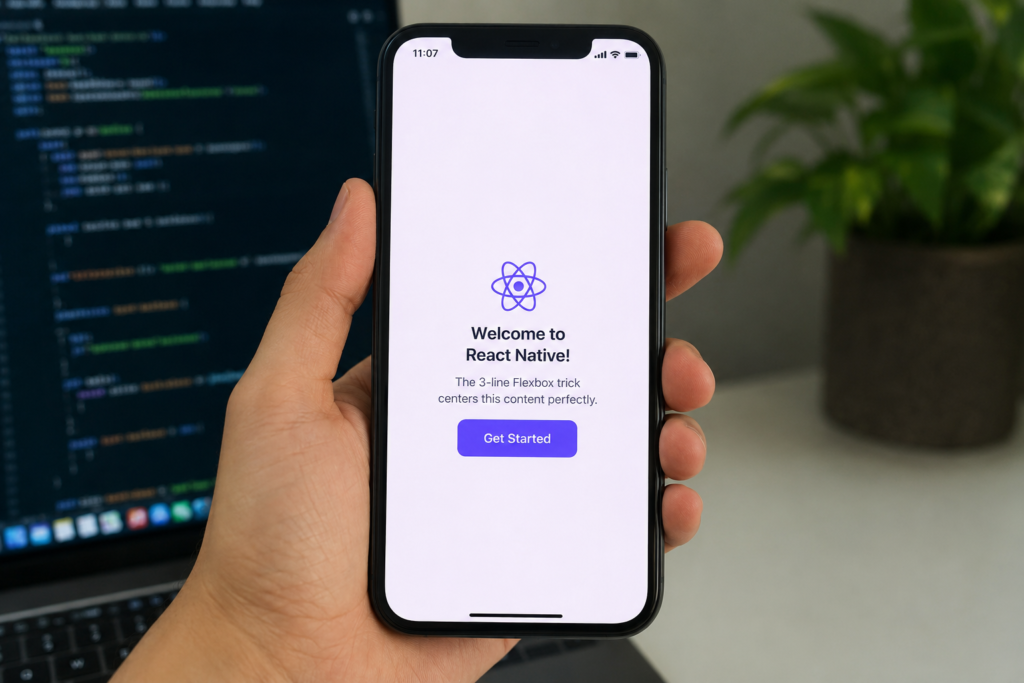
Why This Works
At first glance, the magic seems to come from justifyContent and alignItems.
In reality, the most important line is often:
flex: 1
Without it, the container may only be as tall as its content. If the container has no extra space, there is nothing to center within.
Think of it like trying to center a chair inside a room. If the room is only as large as the chair itself, centering becomes impossible.
By adding flex: 1, you’re telling the container to occupy all available space. Now Flexbox has room to position the content in the middle.
React Native Flexbox vs Web Flexbox
This is where many developers get confused.
If you’re coming from CSS, you probably expect Flexbox to behave exactly like it does in the browser.
It doesn’t.
Web CSS Default
display: flex;
The default direction is:
flex-direction: row;
That means:
- Main axis = horizontal
- Cross axis = vertical
React Native Default
React Native uses:
flexDirection: 'column'
by default.
This means:
- Main axis = vertical
- Cross axis = horizontal
As a result:
justifyContent: 'center'
centers content vertically.
And:
alignItems: 'center'
centers content horizontally.
This small difference is responsible for countless Stack Overflow questions and debugging sessions.
Quick Comparison
| Property | Web CSS | React Native |
|---|---|---|
| Default Direction | Row | Column |
| Main Axis | Horizontal | Vertical |
| Cross Axis | Vertical | Horizontal |
| justifyContent | Horizontal Alignment | Vertical Alignment |
| alignItems | Vertical Alignment | Horizontal Alignment |
Understanding this table makes Flexbox significantly easier to reason about.
Understanding Main Axis and Cross Axis
Instead of memorizing which property does what, focus on the axes.
Flexbox always works with two directions:
Main Axis
Controlled by:
justifyContent
Cross Axis
Controlled by:
alignItems
Since React Native uses a column layout by default, the main axis runs from top to bottom.
That means:
justifyContent: 'center'
moves content vertically toward the center.
Meanwhile:
alignItems: 'center'
moves content horizontally.
Once this concept clicks, Flexbox starts feeling predictable rather than confusing.
The Most Common Reason Centering Fails
A question I see repeatedly from junior developers is:
“Why isn’t justifyContent: ‘center’ working?”
The answer is almost always the same.
Problem
<View
  style={{
    justifyContent: 'center',
  }}
>
  <Text>Hello</Text>
</View>
The View only occupies the height required by the Text component.
There’s no extra space available.
Solution
<View
  style={{
    flex: 1,
    justifyContent: 'center',
  }}
>
  <Text>Hello</Text>
</View>
Now the container fills the screen and centering works as expected.
Whenever centering fails, the first thing I check is whether the parent container actually has space to center content within.
How to Center Text Vertically in a React Native TextInput
Text inputs can be slightly different, especially on Android.
For vertically centered text:
<TextInput
  style={{
    height: 50,
    textAlignVertical: 'center',
  }}
/>
A more realistic example:
<TextInput
  placeholder="Enter your name"
  style={{
    height: 50,
    borderWidth: 1,
    paddingHorizontal: 12,
    textAlignVertical: 'center',
  }}
/>
If you’ve ever noticed text appearing too high or too low inside an input field, textAlignVertical is usually the missing piece.
Centering Content Inside SafeAreaView
Most production apps use SafeAreaView to avoid camera notches and system UI areas.
The centering approach remains exactly the same:
<SafeAreaView
  style={{
    flex: 1,
    justifyContent: 'center',
    alignItems: 'center',
  }}
>
  <Text>Centered Content</Text>
</SafeAreaView>
The critical part is still:
flex: 1
Without it, the SafeAreaView may not fill the available screen space.
Centering Elements Inside an Absolute Container
Sometimes you need a loading overlay that sits on top of existing content.
For example:
<View
  style={{
    position: 'absolute',
    top: 0,
    left: 0,
    right: 0,
    bottom: 0,
    justifyContent: 'center',
    alignItems: 'center',
  }}
>
  <ActivityIndicator size="large" />
</View>
This pattern is commonly used for:
- Loading screens
- Network request overlays
- Modal backgrounds
- Splash screens
Because the container stretches across the entire screen, Flexbox can center the content perfectly.
Centering an Icon Inside a Circular Button
Floating action buttons are another common use case.
<View
  style={{
    width: 60,
    height: 60,
    borderRadius: 30,
    justifyContent: 'center',
    alignItems: 'center',
  }}
>
  <Icon name="plus" size={24} />
</View>
Since the button itself is a square container, Flexbox easily places the icon in the exact center.
This approach works equally well for:
- Profile avatars
- Notification badges
- Action buttons
- Custom icon buttons
Real-World Example: Centered Loading Screen
Here’s a pattern you’ll likely use in nearly every app.
<View
  style={{
    flex: 1,
    justifyContent: 'center',
    alignItems: 'center',
  }}
>
  <ActivityIndicator size="large" />
  <Text>Loading...</Text>
</View>
It’s simple, responsive, and reliable.
I’ve used this exact layout in production apps ranging from internal business tools to customer-facing mobile applications. It works consistently because it relies on Flexbox rather than hardcoded positioning.
Common Mistakes to Avoid
Forgetting flex: 1
This is the number one issue behind broken centering layouts.
Without available space, Flexbox can’t center anything.
Thinking Like a Web Browser
Many developers instinctively assume:
justifyContent
controls horizontal alignment.
That’s true on the web’s default row layout, but not in React Native’s default column layout.
Using Fixed Heights Everywhere
Avoid layouts like:
height: 700
Fixed values often look fine on one device and break on another.
Flexible layouts are more reliable and easier to maintain.
Reaching for Absolute Positioning Too Soon
Absolute positioning has its place, but many layouts can be solved with standard Flexbox.
The simpler solution is usually the better one.
Quick Troubleshooting Checklist
When centering isn’t working, run through this checklist:
✓ Does the parent container have flex: 1?
✓ Does the parent actually have available space?
✓ Are you centering the correct element?
✓ Is a parent view restricting height?
✓ Are you mixing absolute positioning with Flexbox?
✓ Are you remembering that React Native defaults to column?
Checking these items solves the majority of centering issues.
Frequently Asked Questions
What is the easiest way to center content in React Native?
Use:
{
  flex: 1,
  justifyContent: 'center',
  alignItems: 'center',
}
This centers content both vertically and horizontally.
How do I center content without using a fixed height?
Use Flexbox and let the container expand naturally with:
flex: 1
This is the preferred approach for responsive layouts.
Why is justifyContent: 'center' not working?
The parent container usually doesn’t have enough height.
Adding flex: 1 often fixes the issue immediately.
Can I use this inside SafeAreaView?
Yes.
The same Flexbox properties work perfectly inside SafeAreaView components.
Is React Native Flexbox different from CSS Flexbox?
The concepts are the same, but React Native defaults to a column layout while CSS defaults to a row layout.
That single difference changes how justifyContent and alignItems behave.
Key Takeaways
If you’re in a hurry and only want the solution, here it is one last time:
{
  flex: 1,
  justifyContent: 'center',
  alignItems: 'center',
}
These three lines are the foundation of most centered layouts in React Native.
The trick works because React Native uses a column-based Flexbox layout by default. Once you understand that justifyContent controls the vertical axis and alignItems controls the horizontal axis, centering stops feeling like trial and error.
For loading screens, onboarding pages, empty states, splash screens, circular buttons, and dozens of other UI patterns, this simple Flexbox combination is often all you need.
Read about .03. React Native resizeMode Visual Guide: How to Fix Stretched, Cropped, and Blurry Images – knowabteverything
UI Components Setup – knowabteverything
React Native · Learn once, write anywhere

About Amish
Hi, I’m Amish, and developer.
I write practical React Native, Node.js, MongoDB, and Supabase tutorials based on real projects and testing.
[…] The 3-Line Flexbox Trick That Centers Anything in React Native – knowabteverything […]
[…] The 3-Line Flexbox Trick That Centers Anything in React Native – knowabteverything […]
[…] The 3-Line Flexbox Trick That Centers Anything in React Native – knowabteverything […]
[…] The 3-Line Flexbox Trick That Centers Anything in React Native – knowabteverything […]
[…] Read about The Ultimate React Native Beginner Roadmap (2026 Edition) – knowabteverythingThe 3-Line Flexbox Trick That Centers Anything in React Native – knowabteverything […]
[…] The 3-Line Flexbox Trick That Centers Anything in React Native – knowabteverything […]