
React Native resizeMode Visual Guide: How to Fix Stretched, Cropped, and Blurry Images. Few things make a mobile app look unpolished faster than poorly displayed images.
You add an image, run the app, and suddenly the logo looks stretched, a profile photo is missing half a face, or a background image appears blurry on larger devices. Most of these problems come down to one property: resizeMode.
React Native gives developers five built-in resize modes—contain, cover, stretch, center, and repeat. The challenge isn’t learning their names. It’s remembering how each one behaves in real layouts and knowing which option fits a specific use case.
This guide breaks down every resize mode with practical examples, common mistakes, and real-world recommendations so you can choose the right one confidently.
Table of Contents
- What Is
resizeModein React Native? - Quick Comparison: All Resize Modes at a Glance
containcoverstretchcenterrepeatcentervscontain: Which Should You Choose?- Why Images Get Stretched in React Native
- Why
coverCrops Images - The Most Common Developer Mistake
- React Native
resizeModevs CSSobject-fit - Fixing Blurry Images
- Best Resize Modes for Common UI Elements
- Frequently Asked Questions
- Key Takeaways
(React Native resizeMode Visual Guide: How to Fix Stretched, Cropped, and Blurry Images) What Is resizeMode in React Native?
The resizeMode property determines how an image should fit inside its container.
If you’ve worked with CSS before, it’s very similar to the object-fit property on the web.
For example:
<Image
  source={{ uri: imageUrl }}
  style={{ width: 250, height: 250 }}
  resizeMode="contain"
/>
The image file itself doesn’t change. Instead, React Native decides how it should be displayed within the available space.
Understanding this distinction helps prevent many layout issues before they happen.
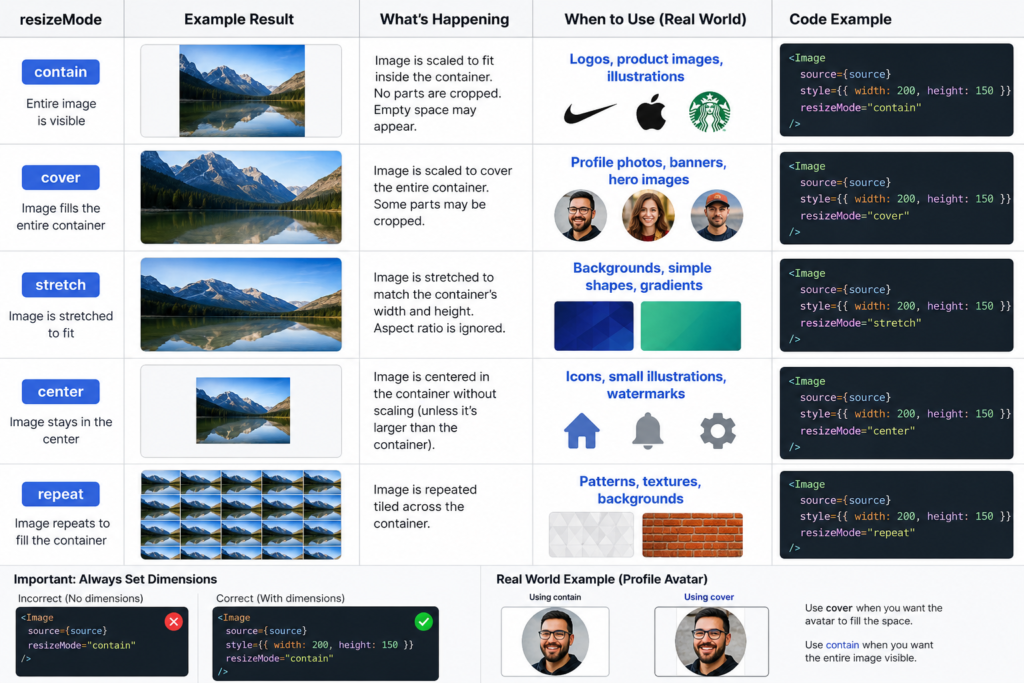
Quick Comparison: All Resize Modes at a Glance
| resizeMode | Preserves Aspect Ratio | Crops Image | Can Distort Image | Best For |
|---|---|---|---|---|
| contain | Yes | No | No | Logos, product images |
| cover | Yes | Yes | No | Avatars, banners |
| stretch | No | No | Yes | Decorative backgrounds |
| center | Usually | Sometimes | No | Icons and small graphics |
| repeat | Yes | No | No | Patterns and textures |
resizeMode=”contain”
What It Does
contain scales the image until the entire image fits inside the container.
Nothing gets cropped, and the aspect ratio remains intact.
The trade-off is that empty space may appear around the image.
Example
<Image
  source={require('./logo.png')}
  style={{ width: 300, height: 150 }}
  resizeMode="contain"
/>
When to Use It
contain is usually the safest choice when every part of the image matters.
Examples include:
- Company logos
- Product photos
- Brand assets
- Educational diagrams
- Screenshots
Real-World Example
Imagine you’re displaying a company logo on a login screen.
Cropping part of the logo would look unprofessional, and stretching it would distort the brand identity.
In this situation, contain is almost always the correct choice.
resizeMode=”cover”
What It Does
cover scales the image until the container is completely filled.
The image keeps its original proportions, but portions may be cropped if the aspect ratios don’t match.
Example
<Image
  source={{ uri: imageUrl }}
  style={{ width: 320, height: 180 }}
  resizeMode="cover"
/>
When to Use It
Use cover when filling the available space is more important than showing every pixel.
Common examples include:
- User profile photos
- News article thumbnails
- Hero banners
- Social media cards
- Featured content sections
Why Images Get Cropped
One of the most common developer questions is:
“Why is resizeMode cover cutting off my image?”
Because that’s exactly what cover is designed to do.
If a square image must fill a wide rectangular container, React Native enlarges the image until the entire container is covered. The excess image outside the boundaries is then hidden.
Real App Example
Instagram profile photos behave similarly to cover.
The image fills the frame completely, even if small portions around the edges are no longer visible.
resizeMode=”stretch”
What It Does
stretch forces the image to match the container’s exact width and height.
Aspect ratio is ignored.
Example
<Image
  source={require('./background.png')}
  style={{
    width: 300,
    height: 100
  }}
  resizeMode="stretch"
/>
Advantages
- Fills available space perfectly
- Useful for simple graphics
- Works well for scalable UI assets
Drawbacks
Photos and logos often look distorted.
A square image placed inside a rectangular container becomes a rectangle, which can make people, products, and branding assets appear unnatural.
Good Uses
- Decorative graphics
- Background shapes
- Gradients
- Custom UI elements
Poor Uses
- Profile pictures
- Product photography
- Logos
- Marketing images
resizeMode=”center”
What It Does
center places the image in the middle of its container.
Unlike contain, it doesn’t aggressively scale the image to fit the available space.
If the image is larger than the container, parts may be clipped.
Example
<Image
  source={require('./icon.png')}
  style={{
    width: 150,
    height: 150
  }}
  resizeMode="center"
/>
Best Use Cases
- Icons
- Small illustrations
- Status indicators
- Fixed-size graphics
Practical Observation
Many developers initially use center expecting it to behave like contain.
That’s usually where layout confusion begins.
If your image needs to adapt to different screen sizes, contain is often the better option.
resizeMode=”repeat”
What It Does
repeat tiles an image repeatedly until the entire container is filled.
Think of wallpaper patterns on a wall.
Example
<Image
  source={require('./pattern.png')}
  style={{
    width: 300,
    height: 300
  }}
  resizeMode="repeat"
/>
Best Uses
- Textures
- Decorative patterns
- Background effects
- Game interfaces
Expo Developers: A Common Issue
A frequent complaint is:
“Expo ImageBackground resizeMode repeat not working.”
In many cases, the issue isn’t the image itself.
Possible causes include:
- Platform-specific behavior differences
- Unsupported implementations
- Incorrect container sizing
- Version-related limitations
Always verify the behavior on both Android and iOS before shipping.
React Native resizeMode Center vs Contain
This comparison confuses many developers because both options can display the entire image under certain conditions.
contain
- Scales image to fit available space
- Entire image remains visible
- Better for responsive layouts
center
- Centers image inside container
- Minimal scaling behavior
- Better for fixed-size assets
Side-by-Side Comparison
| Feature | center | contain |
|---|---|---|
| Responsive | Limited | Excellent |
| Automatic Scaling | Minimal | Yes |
| Logo Support | Good | Excellent |
| Icon Support | Excellent | Good |
| Prevents Clipping | Not Always | Yes |
Recommendation
For most production apps, contain is the safer and more predictable choice.
Use center when you’re intentionally displaying small fixed-size assets that shouldn’t be resized.
Why Images Get Stretched in React Native
When developers search for:
“How to stop image stretching in React Native”
the root cause is often one of these issues:
1. Using stretch Unintentionally
resizeMode="stretch"
This forces the image into the container shape.
2. Mismatched Container Dimensions
An image may be displayed in a container whose aspect ratio differs significantly from the image itself.
3. Incorrect Layout Assumptions
Sometimes the image isn’t the problem—the parent component is.
Check:
- Width
- Height
- Flexbox rules
- Device responsiveness
before blaming resizeMode.
The Most Common Developer Mistake
If there’s one mistake I’ve seen repeatedly in React Native projects, it’s this:
Using resizeMode without defining image dimensions.
Incorrect:
<Image
  source={{ uri: imageUrl }}
  resizeMode="contain"
/>
Correct:
<Image
  source={{ uri: imageUrl }}
  style={{
    width: 200,
    height: 200
  }}
  resizeMode="contain"
/>
React Native needs dimensions to calculate layout behavior.
Without them, troubleshooting resize modes becomes much harder.
Better Alternative
You can also use:
aspectRatio: 1
alongside a defined width or height for more responsive layouts.
React Native resizeMode and CSS object-fit Equivalents
If you’re transitioning from web development, this mapping helps.
| CSS object-fit | React Native resizeMode |
|---|---|
| contain | contain |
| cover | cover |
| fill | stretch |
| none | center |
| repeat | repeat |
Understanding these equivalents can save time when converting web interfaces into native applications.
Why Do Images Look Blurry When Scaled?
Another common issue is blurry images.
In many cases, resizeMode isn’t actually responsible.
Low-Resolution Source Files
A 200×200 image enlarged to 1000×1000 simply doesn’t contain enough detail.
Aggressive Upscaling
Even with the correct resize mode, large scaling factors reduce visual quality.
High-Density Displays
Modern smartphones use high pixel densities.
Assets that look fine on older devices may appear soft on newer screens.
Best Practices
- Use higher-resolution assets
- Serve appropriately sized remote images
- Avoid excessive upscaling
- Test on multiple device sizes
- Use optimized image formats when possible
Recommended Resize Modes for Common Scenarios
| Scenario | Recommended resizeMode |
|---|---|
| User avatar | cover |
| Product image | contain |
| Company logo | contain |
| Hero banner | cover |
| News thumbnail | cover |
| App icon | center |
| Background texture | repeat |
| Decorative pattern | repeat |
| Stretchable UI element | stretch |
Frequently Asked Questions
What is the default resizeMode in React Native?
The default value is:
cover
This means images attempt to fill their container and may be cropped.
Which resizeMode should I use for logos?
In most cases:
resizeMode="contain"
This ensures the entire logo remains visible without distortion.
Why is resizeMode cover cutting off my image?
Because cover prioritizes filling the container rather than displaying the entire image.
Cropping is expected behavior.
How do I stop images from stretching?
Use:
resizeMode="contain"
and make sure your image dimensions maintain the original aspect ratio.
Is repeat supported everywhere?
Support can vary depending on platform, React Native version, and implementation details. Always test on the devices your users actually use.
Key Takeaways
The best resize mode depends on what matters most: showing the entire image, filling the available space, or preserving a specific visual effect.
A simple rule works surprisingly well:
- contain → Show the whole image
- cover → Fill the entire container
- stretch → Force exact dimensions
- center → Keep a fixed-size image centered
- repeat → Tile a pattern repeatedly
For most responsive interfaces, contain and cover will handle the majority of use cases.
And before spending time debugging image behavior, check the basics first. A missing width, height, or aspect ratio causes more image issues in React Native projects than the wrong resize mode ever does.
Once you understand how each option behaves, image layout problems become much easier to predict—and much faster to fix.
Read about The Ultimate React Native Beginner Roadmap (2026 Edition) – knowabteverything
- How to Fix Expo Status Bar Overlapping iPhone Notches and Dynamic Island Devices – knowabteverything
- Fix React Native Image Picker Permission Denied: 4 Simple Steps (Android & iOS Guide) – knowabteverything
- Why Is My FlatList Not Updating When State Changes? 4 Fast Solutions – knowabteverything
- Mobile App Image Optimization: How to Reduce File Size Without Sacrificing Image Quality – knowabteverything
- Top 50 React Native Interview Questions & Answers (2026 Edition Part 1) – knowabteverything
React Native · Learn once, write anywhere

About Amish
Hi, I’m Amish, and developer.
I write practical React Native, Node.js, MongoDB, and Supabase tutorials based on real projects and testing.
[…] Read about .03. React Native resizeMode Visual Guide: How to Fix Stretched, Cropped, and Blurry Images – knowa… […]
[…] React Native resizeMode Visual Guide: How to Fix Stretched, Cropped, and Blurry Images – knowa… […]
[…] React Native resizeMode Visual Guide: How to Fix Stretched, Cropped, and Blurry Images – knowa… […]
[…] React Native resizeMode Visual Guide: How to Fix Stretched, Cropped, and Blurry Images – knowa… […]
[…] React Native resizeMode Visual Guide: How to Fix Stretched, Cropped, and Blurry Images – knowa… […]